Getting a test print
How to print a test print, print cleaning page or alignment test.
We continue our list of the steps we must take to make the most of our printer knowing their status. Continuing the previous post of test pages HP printers, we leave you with instructions on how to make reports, cleaning pages, etc., in some models of HP.
If you can not find your printer model, check out the listings we have done previously:
- Printing Tests HP Deskjet series 400, 500, 600 and 700
- Printing Tests HP Deskjet 6000 series, D1300, D1400, D2300, D4100 and D4200
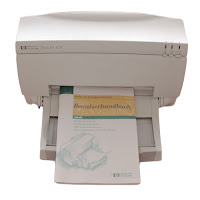
HP Deskjet 800 series
HP Deskjet 820c
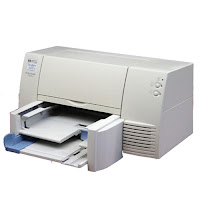
Print Test Page
- Make sure the printer is turned on properly.
- Now, press and hold the "Power" or "Power" button.
- Press the "Resume" or "Resume" button 4 times.
- Release the Power button.
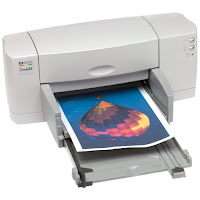
HP Deskjet 810, Deskjet 825c HP, HP Deskjet 830c, HP Deskjet 840c, HP Deskjet 845c, HP Deskjet 880c and 895c HP Deskjet.

- With the printer press and hold the "Resume" or "Summary" button until you see the printer starts printing.
- Release the button.
Print diagnostic test
- Turn on the printer.
- Hold the button "Power" or "Power" while pressing "Resume" or "resume" four times.
- Release the button "Power".
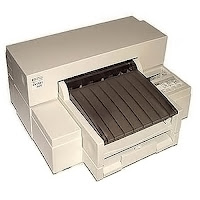
HP Deskjet 850c, HP Deskjet 870c and 890c HP Deskjet.
HP Deskjet 870c
Print Test Page
- Turn on the printer and lets down the "Resume" or "Resume" button.
- When the printer starts printing, release the button.
Print page cleaning test
- Turn on the printer and lets down the "On" or "Power" button.
- Now press the "Resume" or "Resume" button 7 times.
- Release the button "Power".
Print diagnostic test
- With the printer on, press and hold the "On" or "Power" button.
- Press the "Resume" or "Resume" button five times.
- Release the button "Power".
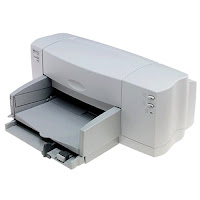
HP Deskjet 900c
HP Deskjet 916c, HP Deskjet 920c, HP Deskjet 930c, HP Deskjet 940c, HP Deskjet c950c, HP Deskjet 960c, HP Deskjet 970c, HP Deskjet 980c and 990c HP Deskjet.
Print Test Page

- Make sure you have the printer on
- Now let down the "Resume" or "Resume" button until the printer starts to make an impression.
- Release the button.
Print page Self Test
- With the printer press the "On" or "Power" button and hold it down.
- Now press the "Resume" or "Resume" button 4 times.
- Release the button "Power".
Print diagnostic test
- Turn on the printer
- Hold the "Power" or "Power" button.
- Now press the button "Cancel" (X) 8 times.
- Press the "Resume" or "Resume" button 4 times.
- Now you can release the button "Power".
Print test module duplexing (duplex)
- With the printer turned on hold the "Power" or "Power" button.
- Click the "Cancel" (X) button 3 times.
- Press the "Resume" or "Resume" button 1 time.
- Release the button "Power".
HP Deskjet 3000 series
HP Deskjet 3000, HP Deskjet 3100, HP Deskjet 3200, HP Deskjet 3300, HP Deskjet 3400, HP Deskjet 3500, HP Deskjet 3600, HP Deskjet 3700, HP Deskjet 3800 and HP Deskjet 3900.
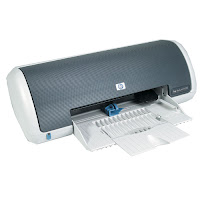
Print diagnostic test
- Now turn on the printer and press and hold down the button "Power" or "Power".
- Open and close the top cover 4 times.
- Release the button "Power".
HP Deskjet 3820
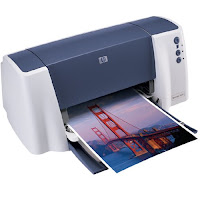
Print Test Page
- Turn on the printer.
- Hold down the "Resume" or "Resume" button until you see the printer starts printing.
- Release the button.
Print page Self Test
- Already on the printer, press and hold the button "Power" or "Power".
- Now press the "Resume" or "Resume" button 4 times.
- Release the button "Power".
HP Deskjet 5000 series
HP Deskjet 5000 series
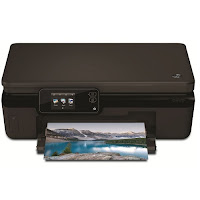
Print Test Page
- Turn on the printer
- Hold down the "Resume" or "Resume" button and wait until the printer starts printing.
- Release the button.
Print page Self Test
- Make sure you have the printer on.
- Now let down the "On" or "Power" and while button press 4 times the "Resume" or "Resume" button.
- Release the button "Power".
Print Test Page "H" continua
- Turn on the printer and hold the button "Power" or "Power".
- Press the button "Resume" or "Resume 8 times.
- Release the button "Power".
HP Deskjet 5100
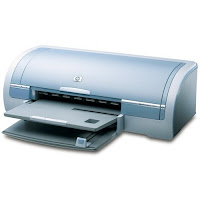
Print Test Page
- Turn on the printer.
- Press the "On" or "Power" button and let down.
- Press the "Resume" or "Resume" button 4 times.
- Release the button "Power".