Showing posts with label Save. Show all posts

Tuesday, 24 May 2016

Printers that use little ink

Printer Blog >> Save >> Printers that use little ink

Printers that use little ink


Did you buy that printer was on offer for 30 €? Have you then regretted to see that the cartridges are worth more than the printer itself? Probably who answered yes to the first question ... .also made it to the second.

Printers who spend little


If we remember the saying "cheap is expensive" with printers corresponds to 100%. You can usually find a printer inkjet for 40 €, however, when buying cartridges, you will realize that these are quite expensive.

Generally, the inkjet printers typically spend more than the laser. The problem with the latter is that they usually cost more than € 100, so in the first instance, we can be expensive.

If what you're looking for is that the cost per copy as small as possible, we do recommend a mono laser printer (ie, that only print in black and white). The only thing is to renounce the colored end, but always can go to a reprographic printing in color, in the end, will be cheaper to print it at home with an inkjet printer.

As for models ... There are no specific models that use less than normal, but we recommend that are printers that can be configured the way it is printed. For example, in some Brother printers, you can activate the "toner saving mode". Thus, what it does is clarify a bit the tone of the prints, so you can see perfectly, but when printing, less toner is used.


Another way to get the most for print save is to buy economical ink. Currently there are many shops where you can buy supplies at a great price.


Source:


Tuesday, 10 May 2016

How to change printer cartridges dela DCP-J132W Brother

Printer Blog >> Help >> How to change the printer cartridges of Brother DCP-J132W


Printer Brother DCP-J132W


Change Printer cartridges Brother DCP-J132W


Want to know how to change cartridges Brother DCP-J153W? Us how:
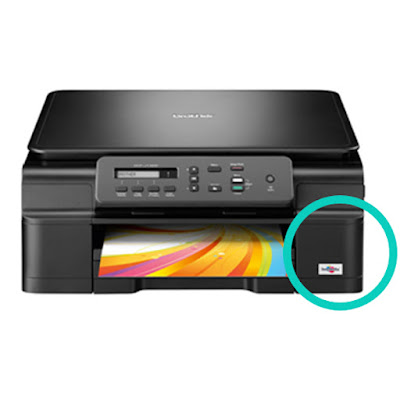
The Brother DCP-J132W printer has four individual ink cartridges. Here we can locate on the right front of the printer:


Brother DCP-J132W

To change we can follow the steps come in the User Guide of the printer or the following:


  • Open the cartridge cover.
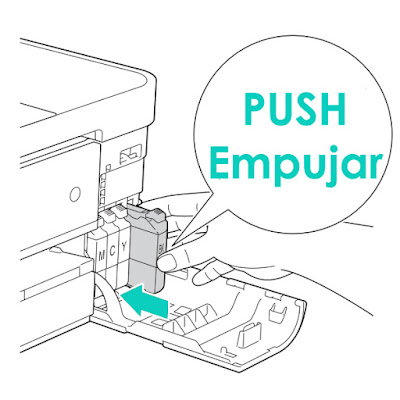
  • Each cartridge has a flange at the top. Simply press the lever to release the lock and the cartridge will.Cartridges Brother DCP-J132W
  • Take the new cartridge and remove all the protections you may have. (Without shaking the cartridge).
  • Insert the cartridge in its corresponding color and gently press the cartridge into until you see the lock lever is lifted.
Cartridges Brother DCP-J132W
  • Close the cartridge cover ... and READY!


You have changed your cartridges Brother printer!


To see de original content click to Como cambiar los cartuchos de la impresora Brother DCP-J132W

Printers that spend low ink

Home >> Buy printer >> Printers that spend low ink

Did you buy that printer was on offer for 30 €? Have you then regretted to see that the cartridges are worth more than the printer itself? Probably who answered yes to the first question ... .also made it to the second.
Printers who spend little
Impresoras que gasten poco

If we remember the saying "cheap is expensive" with printers corresponds to 100%. You can usually find a printer inkjet for 40 €, however, when buying cartridges, you will realize that these are quite expensive.

Generally, the inkjet printers typically spend more than the laser. The problem with the latter is that they usually cost more than € 100, so in the first instance, we can be expensive.

If what you're looking for is that the cost per copy as small as possible, we do recommend a mono laser printer (ie, that only print in black and white). The only thing is to renounce the colored end, but always can go to a reprographic printing in color, in the end, will be cheaper to print it at home with an inkjet printer.

As for models ... There are no specific models that use less than normal, but we recommend that are printers that can be configured the way it is printed. For example, in some Brother printers, you can activate the "toner saving mode". Thus, what it does is clarify a bit the tone of the prints, so you can see perfectly, but when printing, less toner is used.


Another way to get the most for print save is to buy economical ink. Currently there are many shops where you can buy supplies at a great price.

You can see the original post at Impresoras que gasten poco

Thursday, 5 May 2016

Ecotank Epson printer: the printer without cartridges

Home >> Buy Printer >> Ecotank Epson printer: the printer without cartridges

Epson Ecotank


Epson Ecotank
Epson printers without cartridges


A printer without cartridges? That's right, Epson has developed new printers Ecotank, the first in Spain that do not use cartridges. Want to know more about how they work? You'd tell you all!


Check out the video presentation of Epson Ecotank so you know what we're talking about.


The new Epson printers are changing the concept of printing, to print at home or in the office leave a luxury. There are two models: Epson L355 Ecotank, printer more or less small size, at a more affordable price, ideal to have it at home; and other more developed, the Epson L555 Ecotank with automatic feed scanner, better print quality and speed, more oriented companies, offices, etc.


These printers have a deposit on the side of the 4 main colors (black, cyan, magenta and yellow). These deposits have a capacity of 70ml each color, that the estimate made by the manufacturer allow us to print about 6,500 pages and 4,000 color of the black.

Ecotank Epson


Ecotank Epson printers features:


  •          Multifunction: print, copy and scan (The Epson L555 also includes fax)
  •          Connectivity via WIFI
  •          Printing from mobile devices


In Printers Tips we wanted to make a comparison with some more or less the same range supposed to know how much savings this type of printers.


We have selected a couple of other brands of printers whose characteristics are similar except for the ink:


Compare Epson printers with other similar Ecotank:

Home printers
Brother DCP-J552DW
HP ENVY 4500
Epson Ecotank L355
Multifunction
Yes
Yes
Yes
Conexion
USB y WIFI
USB y WIFI
USB y WIFI
Printer speed
12 ppmm
8.8 ppmm
9 ppmm
Paper capacity
100 sheets
100 sheets
100 sheets
Cost per copy (original cartridges)
0,09€
0,12€
0,01€


Impresoras para oficina
Brother DCP-J870DW
HP Officejet Pro 6830
Epson Ecotank L555
Multifunction
Yes + Fax
Yes
Sí + Fax
Conexion
USB, WIFI y Red
USB, WIFI y Red
USB y WIFI
Printer speed
12 ppmm
18 ppmm
15 ppmm
Paper capacity
100 sheets
225 sheets
100 sheets
Cost per copy (original cartridges)
0,09€
0,08€
0,01€


Look at the original post in Consejos Impresoras

How to print in black and white

Home >> Save >> How to print in black and white

How to print in black and white with color printers


Monochrome printing with HP, Brother, Epson, Canon and Samsung printers.

Print in monochrome


We often want to print documents that really are not very important or we can do without color. To do this with a print in grayscale or black and white will suffice us and also we save ink. You can configure the print in black and white is quite similar in the different brands of printers.

Take the example that we have a Word document and want to print in black and white.

To send print the document press the following keys on your keyboard "Ctrl + P" or "Ctrl. + P".

We will open a small window with the specifications for printing. There press "Properties". In the properties, depending on the printers we find some options or other.

For example, Samsung laser printers have to go to the tab "Design" and then on "Color Mode" Select "Grayscale".

In inkjet printers HP Deskjet can normally set from the printer program itself, "Advanced", then select Print in "Grayscale" and lowering the drop-down menu click on "Black Ink Only".

With the Canon inkjet printers, for example the series of the Canon Pixma MG, we can open the printer driver and on the tab that says "Main" select "Grayscale".

If we have a Brother printer, such as a Brother MFC-J430W, when we give to print and then we click on "Preferences" We will open another dialog with the printer properties: quality, size, orientation ... There we see that we can choose "Grayscale" and even print in "ink saving mode".

What we got printed in black and white?


Save printing in black and white
Mainly, what we want is not to waste color ink when it is not really necessary. If it is true that some printer models pull some ink cartridges to print color or grayscale black and white but obviously not as much as if imprimieses full color.

You may also wish that effect on some documents and want to choose this option. Our recommendation is that, if not absolutely necessary, imprimáis in black and white in "draft mode" because eventually you will notice a big savings in ink!


Look at the original post in Consejos Impresoras

Wednesday, 27 April 2016

Ink saving tips


Home >> Save >> Ink saving tips

Save on printer ink

How to save on prints using less ink


We leave you some tips that will help you save on your impressions of both ink and toner.


  1. Print in draft mode: This mode is available on some printer models in the brand Brother for example there is an option of "Toner Save". Through the Office document, print when you select the printer properties. There you can activate toner saving draft or what it will do is print a little lighter than normal, but still legible form.


2. Print pages written on one side: Exactly! How many papers used on one side and then we throw away? We can reuse them for documents to be submitted not anyone.


3. Leverage duplexing: Many printers have automatic duplexing print that makes work easier because you just have to select the option and the printer does the rest.


4. Turn off automatic mode: Especially in companies, turn on the printer first thing ... and can stay on for days. This increases the power consumption of the printer and can shorten its life, so ... or are pending or better activate the sleep mode.


5. Print color only when needed: If calculásemos the difference in cost per page of the same document in color and black and white ... we would be surprised. If not essential, best monochrome.


6. Control Programs: Some Softwares of all printers allow you to print so as to save on ink or toner. These programs automatically removed images, the big titles or less important data (headers / footers ...)


7. XL Consumables: Almost all brands have cartridges with XL versions whose cost per ml is lower than normal.
xl cartridges


8. Take care of the printer and clean it: The printers need regular maintenance, it is best to check with the printer manual and follow cleaning. A printer can consume you messed up more ink than one that is good.


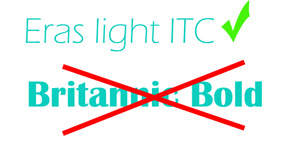
9. Typeface: do not you think so? Bolding are the worst enemy of savings! But not only that, the font also influences. A light Eras ITC does not use the same amount of ink a Britannic Bold. Also shaded, they underlined and additional others, can vary your ink consumption significantly.

spending ink letter source

10. The printer spends more if printed sporadically: On some models can reach 503% increase ink consumption when printing from time to time if done intensively.


11. Dries if the printer is not in use: In inkjet printers must be very careful if we abandoned for a time ... cartridges have a head where the ink comes out. If it ceases to be used, the ink that soaks the head is dry, so, or we got back we print head cleaning or doing we must pull the cartridge :-(. In the case of toners, often for lack of use toner powder caked on the inside remains. it is common to have to remove it, shake slightly to distribute the toner well and put it back into the printer.


12. Type of paper: there are different sizes, thicknesses, quality ... If we can better recycled paper, and if it has to be new role, we can opt for any of average quality.


Look at the original post in Consejos Impresoras

Restart Printer Brother DCP-1510 toner

Home >> Save >> Restart toner Brother DCP-1510 printer

Save on toner with continue mode


How to skip the message of "change toner" on printer Brother DCP-1510


In many of monochrome printers Brother jumps a warning "low toner" or "change toner" when they recognized that the toner is finished. However, as not all the same print, if you skip this error when prints jump totally sharp and well, you can skip this message and continue using the toner.

This is what is known as "Continue Mode" Brother toners.

Continue mode Brother


Activate "CONTINUE MODE"


"Continue mode" it serves to resume printing again despite the message that appears on the LCD screen of your Brother printer. Activating this mode may cause the quality of the prints is not as good as at home but at least we can continue to use the toner to the actual end of its useful life.

When activated "mode to continue" the printer continues releasing messages "change toner" "toner low" or "spent toner". This mode is disabled once a new toner so you'll have to activate it every time you're with a new toner is installed.

Then you leave the steps to activate the "mode continue":

  • Press the "Menu" key and select "General Settings" >> "Replace Toner".
  • Continue mode Brother
  • Now using the arrows up or down, select "Continue" and click "OK".
  • Press the "Stop / Exit" and go! Button


Look at the original post in Consejos Impresoras