Showing posts with label toner cartridges. Show all posts

Wednesday, 1 June 2016

Change cartridges HP Deskjet 1000 series

Printer Blog >> Help >> Change cartridges HP Deskjet 1000 series

HP Deskjet 1000 series


Change printer cartridges HP Deskjet 1000, Deskjet 1010, Deskjet 1050, Deskjet 1510, Deskjet 1512, Deskjet 1515.

To change printer cartridges HP Deskjet 1000 series you can follow the instructions in the manual that includes or perform the following steps:


Hp Deskjet 1050

Steps to change the ink cartridges


  • Verify that the printer is connected and that paper. In order to change the printer cartridge correctly must be like if you were to print.
  • Open the cartridge door is at the front. You will see that the car with the cartridges will begin to move to move to the center. Expected to stay standing in the center to remove the cartridges.
  • Press down the cartridge gently until you feel disengages. Sometimes it takes a bit but can usually be easily removed, I remove it from its slot.
  • Open the new cartridge and carefully remove the protective tape. This usually takes a striking and directions on how to remove color. It serves to protect the head cartridge because in these models is integrated. Try not touch the head or contacts, as dirt can cause the cartridge to malfunction.
  • Insert the new cartridge until you hear a click. Make sure you're getting in the right place. If you're trying to get the cartridge and see that you do not fit, try to get him into the next slot because it can not be that your site :-).
  • Close the cartridge door and wait for the printer to perform their "homework".


Once installed a new cartridge, it is best to take out a print test to verify that it works correctly.

More accurate impression you would like shown below:

Print test HP Deskjet 1000


If you have left you with some color spots or it does not work, then you have to perform head cleaning with printer software or manually.

Remember these steps to clean the heads dela HP printer used for the following models:
HP Deskjet 1000, Deskjet 1010, Deskjet 1050, Deskjet 1510, Deskjet 1512, Deskjet 1515.


Tuesday, 10 May 2016

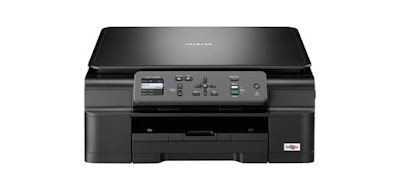
How to change printer cartridges dela DCP-J132W Brother

Printer Blog >> Help >> How to change the printer cartridges of Brother DCP-J132W


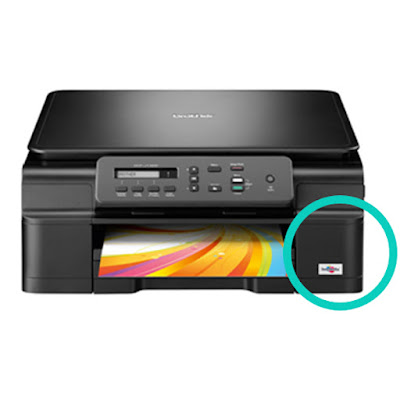
Printer Brother DCP-J132W


Change Printer cartridges Brother DCP-J132W


Want to know how to change cartridges Brother DCP-J153W? Us how:
The Brother DCP-J132W printer has four individual ink cartridges. Here we can locate on the right front of the printer:


Brother DCP-J132W

To change we can follow the steps come in the User Guide of the printer or the following:


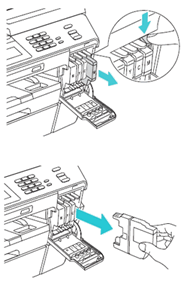
  • Open the cartridge cover.
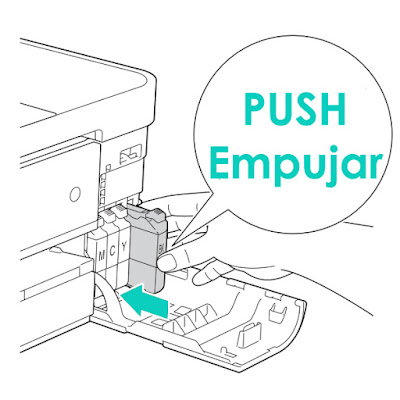
  • Each cartridge has a flange at the top. Simply press the lever to release the lock and the cartridge will.Cartridges Brother DCP-J132W
  • Take the new cartridge and remove all the protections you may have. (Without shaking the cartridge).
  • Insert the cartridge in its corresponding color and gently press the cartridge into until you see the lock lever is lifted.
Cartridges Brother DCP-J132W
  • Close the cartridge cover ... and READY!


You have changed your cartridges Brother printer!


To see de original content click to Como cambiar los cartuchos de la impresora Brother DCP-J132W
Printer blog >> Help >> How to change cartridges Epson XP-322 printer


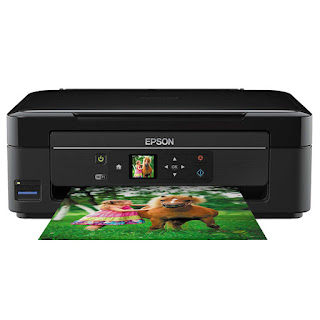
Epson XP-322 printer


Change Printer cartridges Epson XP-322

To replace the ink cartridges from the printer you can use the instructions in the manual for your printer or follow the steps below.


Epson XP-322 printer

* First of all, replacing the ink cartridges so you only when prompted by the printer. The printer must be connected and turned as if ready to print.

  • From the LCD screen verifies that the printer cartridges have to be replaced, press the OK button and select "Change Now" on the menu. Another option is to go to menu "Settings" >> "Maintenance" >> "Ink Cartridge Change" and press the blue button.
  • In the case of black ink cartridge, it is recommended to shake a few times before installing.
  • Remove the cartridge from the blister and remove solely the yellow tape as shown in the image.
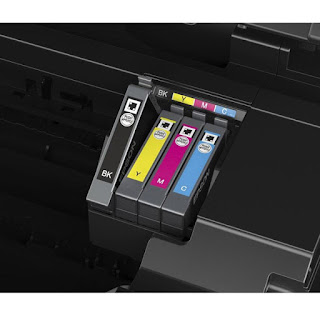
  • Open the top cover to access the cartridges. To remove the cartridge, press the tab and pull it up.

Change cartridges Epson
  • Insert the cartridge into place until you hear a "click" and close the cover up.
  • Press the blue button and ready!


These steps to change the Epson printer cartridges, are also valid for the following models:
Epson XP-102, Epson XP-202, Epson XP-205, Epson XP-212, Epson XP-215, Epson XP-225, Epson XP-30, Epson XP-302, Epson XP-305, Epson XP-312, Epson XP-315, Epson XP-322, Epson XP-325, Epson XP-402, Epson XP-405, Epson XP-412, Epson XP-415.


Wednesday, 27 April 2016

Lock lever Brother printer ink

Home >> Help >> Lock Lever Brother printer ink

Lock lever in the Brother printer ink

Locking lever ink component Brother printers inkjet

Brother inkjet printers


One of the things most characteristic of inkjet printers Brother are locking levers ink. These levers make the lock function so that the ink cartridge is securely so you can print correctly.


Many times to see if an ink cartridge of a Brother printer is installed correctly, not only to look at the LCD screen printer can know. There is another more rudimentary formula, perhaps less known, that is the "click" sounds by the lock lever to push the printer ink cartridge in the slot intended for the Brother color printer.

Brother locking lever


In the ink cartridges Brother, loose, without placing the printer in its original packaging, usually also includes a part that can not be entered into the printer and a new lever, but in this case release the ink cartridge .

Once you take out the ink cartridge Brother your bag, you'll notice as one of the ends of the leaves ink cartridge, there is a piece of plastic that must be removed as shown in the illustration below. It is essential rotate the lever in the direction of clockwise so that the ink outlet is clean and unobstructed, and once this happens, you can take the plastic part without difficulty to be installed on the Brother printer.

Brother locking lever


Look at the original post in Consejos Impresoras