Showing posts with label laser printer. Show all posts

Wednesday, 6 July 2016

Steps to reset printers Brother HL

Home >> Help >> Reset Printer Brother HL-2030, HL-2040 and HL-2070


Steps to reset printers Brother HL:


Brother HL

Brother HL Reset - Tips Printers


Brother HL-2030
Brother HL-2040
Brother HL-2070
Brother HL-2130
Brother HL-2135
Brother HL-2250
Brother HL-2270
Brother HL-2230
Brother HL-2240


Error toner solution "Replace Toner".


If you bought a new toner for your Brother HL install printer and you get a message similar to "Replace Toner", "Replace Toner" or "Error toner" can solve the problem by performing the steps we leave you then. Brother laser printer not usually give many problems with toners, although sometimes that can happen if you do not detect the toner properly.


IMPORTANT: Before you start doing anything, we recommend you read carefully all realízalos steps and then gradually without skipping any of them. If you believe that you have not done correctly or you could skip any steps, turn the printer off, desenchúfala current about 30 seconds, reconnect it and start again.


You are ready? Well ... here we come!


Step 1. Turn off the printer: on some models switch the printer is in the back or side. If in doubt, look in the manual for your printer.

Step 2. Open the front cover where the toner is (the toner has to be entered correctly, simply leave the lid open).

Step 3. Turn on the printer while holding the "GO" button pressed until all lights remain on.


Reset Brother - Tips printers


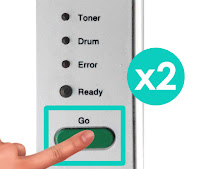
Step 4. We press the "GO" button 2 times and wait a few seconds.

Reset Brother - Tips printers
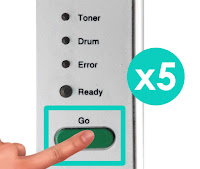
Step 5. We press the "GO" 5 times. Button Toner light must be turned off and turned on the light paper.


Reset Brother - Tips printers
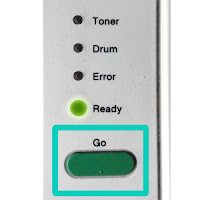
Step 6. We close the toner cover and light "ready" should stay on.


Reset Brother - Tips printers

If after the reset you get not print, turn the printer off and on again.

In some cases it can indicate a similar message as "change toner" or "toner low" even if you have not printed enough leaves to exhaust it, in that case we recommend that you try to reset the toner manually.


Look at the original post in Consejos Impresoras

Wednesday, 1 June 2016

Reset Toner Brother MFC series


Printer Blog >> Help >> Reset Toner Brother MFC series

Brother MFC printer toner reset


Problem: The printer does not recognize the toner


Brother MFC
Brother MFCA can sometimes happen that when installing the printer toner will launch messages such as "Replace Toner" or "Out of toner" or simply "toner error". Do not worry, it is relatively common to occur in Brother printers when you install a toner that is not the manufacturer's brand.

In this case, the solution is quite simple. First we recommend you try to make toner restart before proceeding with the steps listed below you.


If the steps you still has problems, try to do the following after performing:


  1. Open the front cover of the printer (where the toner is introduced)
  2. On the printer display you will get a message like "Front cover open" or "Cover Open".
  3. Press the "CLEAR" or "DELETE" button.
  4. A beep sounds in the printer and the display appears the message "Replace Drum?"
  5. Click on the following combination * 00 numeric keypad and press the "ENTER" button.
  6. Close the front cover, the printer will restart.
  7. If after you reset the printer toner still has problems, try uninstalling the printer and reinstall it again. Optimally, in these cases, is that again install the software CD that comes with the printer, if not, you can download the driver from the official website of Brother.


Why does this happen?


As discussed above, it is relatively common to happen with Brother laser printers. Some printer models have an internal page counter printers that are renewed as the consumable is changed. Sometimes this is not done automatically reboot and the printer does not recognize the toner as brand new or you fail. That is why, so it is necessary to inform the printer that you have installed a new consumable and you have to start counting from zero.

These steps pose no risk to the printer, so if we recommend is that you read completely before starting to perform them.


What if it does not recognize the toner?


If you're still having problems despite this, it is best that you contact the store that supplied the toner because you may simply this is defective and replace it with a new one you can print normally.


Tuesday, 24 May 2016

Printers for Small Businesses

Printer Blog >> Buy Printer >> Printers for Small Businesses

Printers for Small Businesses

Buy printer for small or independent business.

Printers for small offices.

If you have a small business but you need to print daily, Printers Tips will help you choose a good printer for you.
The bottom line is that meets the needs you may have and I have a child support.

We have decided to divide it into two options: if you want to print in black and white or color.

Monochrome printers


In a company usually printed documents daily. If we want to save as much as possible and did not much matter what color prints, the best and most economical is a monochrome printer.
Monochrome laser printers carry a single color, a black toner. Besides being faster when printing, the cost per page printer of this type is usually quite inexpensive. We recommend the following:


Brother DCP-L2500DW 

-          Multifunction
Brother DCP-L2500DW
-          Automatic duplex
-          250 sheets
-          Speed: 26 ppmm
-          Connection: USB

Cost per copy
Compatible consumables
0,01€
Original consumables
0,02€


-          Multifunction
Samsung Express SL-M2675F
-          Automatic duplex
-          250 sheets
-          Speed: 26 ppmm
-          Connection: USB

Cost per copy
Compatible consumables
0,01€
Original consumables
0,02€


-          Multifunction + Fax
HP LaserJet Pro MFP M225dn
-          Automatic duplex
-          250 sheets
-          Speed: 25 ppmm
-          Connection: USB y Network (Ethernet)

Cost per copy
Compatible consumables
0,02€
Original consumables
0,04€


Color printers:


If you need to submit documents to customers and prints must have a certain quality and be in color, in principle the most economical printers are inkjet, but if you compare the cost per page, a colored laser will be your best choice . The problem of color laser is to do an initial outlay high because these printers are around 300-500 euros.
There are brands that have made inkjet printers with performance and very similar costs to color laser, as in the case of the HP Officejet Pro X551dw.

Therefore we recommend:

Color Laser Printers


-          Multifunction + fax
Brother MFC 9330CDW
-          Automatic duplex
-          250 sheets
-          Speed: 22 ppmm
-          Connection: USB, Network (Ethernet) y WIFI

Cost per copy
Compatible consumables
X
Original consumables
0,14€


-          Multifunction fax
Samsung CLX-6260FW
-          Automatic duplex
-          250 sheets
-          Speed: 24 ppmm
-          Connection: USB, Network (Ethernet) y WIFI

Cost per copy
Compatible consumables
X
Original consumables
0,08€


-          Multifunction
-          Automatic duplex
-          750 hojas (expandable to 2)
-          Speed: 28ppmm
-          Connection: USB, Network (Ethernet) y WIFI

Cost per copy
Compatible consumables
0,06€
Original consumables
0,11€


Inkjet printers:


-          No multifunction
HP Officejet Pro X551dw
-          Automatic duplex
-          1050 sheets (2 trays expandables to 3)
-          High speed: 42 ppmm
-          Connection: USB, Network (Ethernet) y WIFI.

Cost per copy
Compatible consumables
0,02€
Original consumables
0,05€


-          Multifunction + Fax
Epson EcoTank L555
-          Manual duplex
-          100 sheets
-          Speed: 33 ppmm
-          Connection: USB y WIFI.

Cost per copy
Compatible consumables
X
Original consumables
0,001€


See the original content at Impresoras para PYMES

Printer cleaning HP Laserjet Pro M176 MFP

Printer Blog > Help >> Printer cleaning HP Laserjet Pro M176 MFP


Printer cleaning HP Laserjet Pro M176 MFP


Cleaning the HP Laserjet Pro M176 MFP Printer


This HP printer is a semi-professional printer that offers very good performance. If we continue to maintain print quality over time and the printer last us many years, vece have to perform a series of cleanings.

Then you leave the instructions recommended by the manufacturer to keep about your printer as the first day!


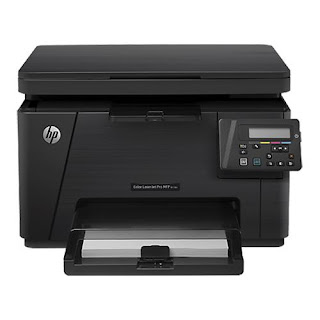
HP Laserjet Pro MFP M176


Print page Cleaning


As mentioned in another post, laser printers, with use, they are "smearing" inside the remains of toner powder. We must bear in mind that the toner powder is a very fine powder and can fit through any crack or hole of the printer. Sometimes, you can stay on the rollers and we can cause problems with print quality as spots, dots, stripes, lines, etc.

In order to solve this, we will print with the printer cleaning page.

  • In the control panel of your printer, press "Settings"
  • In the menu that opens, select "Service"
  • Now we choose "Cleaning Mode"
  • Load A4 size plain paper when prompted printer
  • Give the "OK" button and wait for the printer to remove the cleaning page.
  • When finished it will ask you to take back the sheet and reload it into the input tray with the same orientation.
  • Wait until you finish making the process and you can and discard the page.


Other times, it can happen that copies or scans leave us with little dots or fluffs that are unattractive to our impressions. This can deverse to the scanner may have accumulated dust or dirt and is affecting performance. To clean it, follow the steps listed you.


Clean the scanner

Turn off the printer and disconnect it from the power cord to make sure it is turned off at all times.
Open the scanner lid and clean both the glass and the white plastic that is on the top with a cloth or sponge very soft and slightly dampened with glass cleaner. (Do not use abrasives as acetone, ammonia, alcohol and the like).
While dry glass and plastic with a dry lint-free cloth.
Connect the printer again and try to scan or copy something, go! You have your impeccable printer!


These steps are also valid for the HP Laserjet printer Pro MFP M177


Source: