Showing posts with label color laser printer. Show all posts

Tuesday, 24 May 2016

Printer cleaning HP Laserjet Pro M176 MFP

Printer Blog > Help >> Printer cleaning HP Laserjet Pro M176 MFP


Printer cleaning HP Laserjet Pro M176 MFP


Cleaning the HP Laserjet Pro M176 MFP Printer


This HP printer is a semi-professional printer that offers very good performance. If we continue to maintain print quality over time and the printer last us many years, vece have to perform a series of cleanings.

Then you leave the instructions recommended by the manufacturer to keep about your printer as the first day!
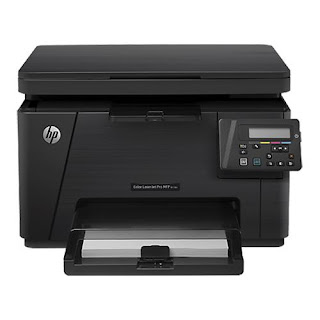


HP Laserjet Pro MFP M176


Print page Cleaning


As mentioned in another post, laser printers, with use, they are "smearing" inside the remains of toner powder. We must bear in mind that the toner powder is a very fine powder and can fit through any crack or hole of the printer. Sometimes, you can stay on the rollers and we can cause problems with print quality as spots, dots, stripes, lines, etc.

In order to solve this, we will print with the printer cleaning page.

  • In the control panel of your printer, press "Settings"
  • In the menu that opens, select "Service"
  • Now we choose "Cleaning Mode"
  • Load A4 size plain paper when prompted printer
  • Give the "OK" button and wait for the printer to remove the cleaning page.
  • When finished it will ask you to take back the sheet and reload it into the input tray with the same orientation.
  • Wait until you finish making the process and you can and discard the page.


Other times, it can happen that copies or scans leave us with little dots or fluffs that are unattractive to our impressions. This can deverse to the scanner may have accumulated dust or dirt and is affecting performance. To clean it, follow the steps listed you.


Clean the scanner

Turn off the printer and disconnect it from the power cord to make sure it is turned off at all times.
Open the scanner lid and clean both the glass and the white plastic that is on the top with a cloth or sponge very soft and slightly dampened with glass cleaner. (Do not use abrasives as acetone, ammonia, alcohol and the like).
While dry glass and plastic with a dry lint-free cloth.
Connect the printer again and try to scan or copy something, go! You have your impeccable printer!


These steps are also valid for the HP Laserjet printer Pro MFP M177


Source: 

Tuesday, 10 May 2016

Toner Brother HL-3140 printer

Printer Blog >> Buy Printer >> Toner Brother HL-3140 printer


Toner Brother HL-3140


Brother toner


Brother HL-3140

The Brother HL-3140 laser printer is a color printer so it uses four different toners, one for each color. These toners only fulfill the function of managing the amount of toner required for powder each of the impressions and pass it to the rollers or drums of the image printer. This means that, in addition to the 4 units of toner used in this printer also uses four imaging units (drums). If you want to know more about this, you can take a look at post we published about how a drum works.


Brother toners enjoy very good performance and quality, we are available for this printer, both standard size and XL for a lower cost per copy and not have to change so often consumables.


Brother standar toner


Name: Brother TN241 black toner
Brother TN241 Toner Negro


Name: Brother TN241 cian toner
Brother TN241 Toner Cian

OEM Reference:TN-241BK
OEM Reference:TN-241C
Ml: 2500 pages
Ml: 1400 pages
Colour


Colour


Name: Brother TN241 magenta toner
Brother TN241 Toner Magenta


Name: Brother TN241 yellow toner
Brother TN241 Toner Amarillo

OEM Reference:TN-241M
OEM Reference:TN-241Y
Ml: 1400 pages
Ml: 1400 pages
Colour


Colour


Brother XL toner


Name: Brother TN241 black toner XL
Brother TN241 Toner Negro XL


Nombre: Brother TN245 cian toner XL
Brother TN245 Toner Cian XL

OEM Reference:TN-241BKXL
OEM Reference:TN-245CXL
Ml: 2500 pages
Ml: 2200 pages
Colour


Colour


Name: Brother TN245 magenta toner XL
Brother TN245 Toner Magenta XL


Name: Brother TN245 yellow toner XL
Brother TN245 Toner Amarillo XL

OEM Reference: TN-245MXL
OEM Reference:TN-245YXL
Ml: 2200 pages
Ml: 2200 pages
Colour


Colour


These Brother printer toners are also valid for the following printers:

Brother DCP-9020CDW, Brother HL-3140, Brother HL-3150, Brother HL-3170, Brother MFC-9140CDN, MFC-9330CDW Brother, Brother MFC-9140CDN and MFC-9340CDW Brother.

Original content at Toner impresora Brother HL-3140

Thursday, 5 May 2016

Brother HL-3140 laser printer Color

Home >> Buy Printer >> Brother HL-3140 Laser Printer Color


Brother HL-3140 laser printer Color


Brother HL-3140


Brother HL-3140


 Brother HL-3140


Description and features laser printer Brother HL-3140


This color laser printer is perfect for printing our color documents at a low cost and high quality. It is reduced in size so you can easily install it wherever you want, because you can use it as a desktop printer.


The Brother laser printers have always enjoyed being quality printers, durable and give few problems over time. Brother printers usually offer very good price, affordable to most consumers, like consumables that are not usually the most expensive. This printer uses individual toners and drums (although the latter are sold in one pack). This ensures optimum print quality because the color toner powder is transferred avoiding color mixtures.


Brother HL-3140


With this printer you can reduce costs and save space. It is designed for a small or medium office who need to print quality color documents.


Key Features Brother HL-3140:

  • Equipment Multifunction not: Just print
  • Connection / Interface: USB and Wifi Direct
  • Printing Method: Color Laser Printing
  • LC Display: Yes
  • Print resolution: 2400 x 600 dpi
  • Print speed: 18 ppb


The Brother HL-3140 printer is a printer designed for office use thanks to its high printing speed even color, because it is capable of printing 18 pages per minute in both black and white and full color. It is ready to print leaflets on quality paper with its print resolution of 2400 x 600 dpi, which for a laser printer, is pretty good. In addition, as mentioned, it is a comfortable printer with not much space and can install it on the table without problems.

This printer has the option to connect via USB directly to your computer or via WIFI. If you connect through the wireless network from any computer or device that is connected to the same network you can print directly to the printer. And thanks to its technology, is compatible with Apple AirPrint and Google Cloud Print so you can print directly from your Smartphone or tablet.

If you decide to connect the printer via USB, remember that printers do not usually include the cable so if you do not know very well that cable uses, you better take a look at this post.

The Brother HL-3140 duplex prints manually, so if you want to print in this way, we have to do first printing the odd pages and then the even.

Paper types supported by the Brother printer are enough, because it has a manual feed a sheet adapts to different sizes and paper supports:

  • A4
  • TO 5
  • A6
  • Letter
  • Legal
  • Envelopes
  • B5
  • Executive


Brother HL-3140In addition, this printer lets you print on plain paper, recycled, glossy paper, labels or envelopes.

The paper tray has a capacity of 250 sheets so will allow you to print large documents without having to be aware of the paper. Keep in mind that this printer is recommended for a monthly duty cycle of 1,500 pages.

The Brother HL-3140 is compatible with the following operating systems: Windows 7, Windows 8, Widows Server 2003 and 2008, Windows Vista and Windows XP.


What's in the Brother HL-3140 printer?

    Brother HL-3140
  • 4 toner cartridges
  • Brother HL-3140
  • 1 unit drum
  • Drive belt
  • Waste toner collector
  • Printer
  • Power cord
  • Software and drivers
  • User's Guide
  • Quick Setup Guide


Look at the original post in Consejos Impresoras

Saturday, 16 April 2016

Printer cleaning HP Laserjet Pro M176 MFP

Home >> Help >> Printer Cleaning MFP HP LaserJet Pro M176


Printer cleaning HP Laserjet Pro M176 MFP


How to clean the HP Laserjet Pro M176 MFP printer


HP Laserjet Pro MFP M176
This HP printer is a semi-professional printer that offers very good performance. If we continue to maintain print quality over time and the printer last us many years, vece have to perform a series of cleanings.

Then you leave the instructions recommended by the manufacturer to keep about your printer as the first day!


Print page Cleaning


As mentioned in another post, laser printers, with use, they are "smearing" inside the remains of toner powder. We must bear in mind that the toner powder is a very fine powder and can fit through any crack or hole of the printer. Sometimes, you can stay on the rollers and we can cause problems with print quality as spots, dots, stripes, lines, etc.

In order to solve this, we will print with the printer cleaning page.

  • In the control panel of your printer, press "Settings"
  • In the menu that opens, select "Service"
  • Now we choose "Cleaning Mode"
  • Load A4 size plain paper when prompted printer
  • Give the "OK" button and wait for the printer to remove the cleaning page.
  • When finished it will ask you to take back the sheet and reload it into the input tray with the same orientation.
  • Wait until you finish making the process and you can and discard the page.


Other times, it can happen that copies or scans leave us with little dots or fluffs that are unattractive to our impressions. This can deverse to the scanner may have accumulated dust or dirt and is affecting performance. To clean it, follow the steps listed you.


Clean the scanner

  • Turn off the printer and disconnect it from the power cord to make sure it is turned off at all times.
  • Open the scanner lid and clean both the glass and the white plastic that is on the top with a cloth or sponge very soft and slightly dampened with glass cleaner. (Do not use abrasives as acetone, ammonia, alcohol and the like).
  • While dry glass and plastic with a dry lint-free cloth.
  • Connect the printer again and try to scan or copy something, go! You have your impeccable printer!


These steps are also valid for the HP Laserjet printer Pro MFP M177


Look at the original post in Consejos Impresoras