Showing posts with label laser. Show all posts

Tuesday, 10 May 2016

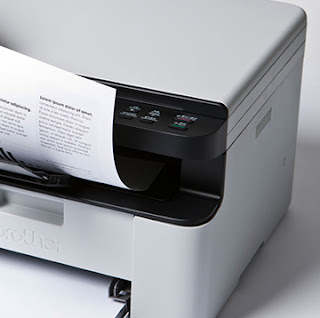
Toner Brother HL-3140 printer

Printer Blog >> Buy Printer >> Toner Brother HL-3140 printer


Toner Brother HL-3140


Brother toner


Brother HL-3140

The Brother HL-3140 laser printer is a color printer so it uses four different toners, one for each color. These toners only fulfill the function of managing the amount of toner required for powder each of the impressions and pass it to the rollers or drums of the image printer. This means that, in addition to the 4 units of toner used in this printer also uses four imaging units (drums). If you want to know more about this, you can take a look at post we published about how a drum works.


Brother toners enjoy very good performance and quality, we are available for this printer, both standard size and XL for a lower cost per copy and not have to change so often consumables.


Brother standar toner


Name: Brother TN241 black toner
Brother TN241 Toner Negro


Name: Brother TN241 cian toner
Brother TN241 Toner Cian

OEM Reference:TN-241BK
OEM Reference:TN-241C
Ml: 2500 pages
Ml: 1400 pages
Colour


Colour


Name: Brother TN241 magenta toner
Brother TN241 Toner Magenta


Name: Brother TN241 yellow toner
Brother TN241 Toner Amarillo

OEM Reference:TN-241M
OEM Reference:TN-241Y
Ml: 1400 pages
Ml: 1400 pages
Colour


Colour


Brother XL toner


Name: Brother TN241 black toner XL
Brother TN241 Toner Negro XL


Nombre: Brother TN245 cian toner XL
Brother TN245 Toner Cian XL

OEM Reference:TN-241BKXL
OEM Reference:TN-245CXL
Ml: 2500 pages
Ml: 2200 pages
Colour


Colour


Name: Brother TN245 magenta toner XL
Brother TN245 Toner Magenta XL


Name: Brother TN245 yellow toner XL
Brother TN245 Toner Amarillo XL

OEM Reference: TN-245MXL
OEM Reference:TN-245YXL
Ml: 2200 pages
Ml: 2200 pages
Colour


Colour


These Brother printer toners are also valid for the following printers:

Brother DCP-9020CDW, Brother HL-3140, Brother HL-3150, Brother HL-3170, Brother MFC-9140CDN, MFC-9330CDW Brother, Brother MFC-9140CDN and MFC-9340CDW Brother.

Original content at Toner impresora Brother HL-3140

Thursday, 5 May 2016

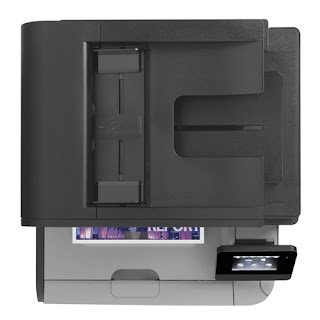
HP Laserjet Pro M476 MFP - Print page Cleaning

Home >> Help  >> HP Laserjet Pro M476 MFP - Print page Cleaning


Print page Cleaning HP Laserjet Pro M476 MFP 


Solution toner stains on prints


Print page Cleaning HP Laserjet Pro M476 MFP It is possible that impressions can use to start out with stains or soils both front and back sides of the sheet. We think that laser printers take some supplies that are called carry toner and dust inside.
This dust is very fine and can get into any small hole or slot producing long problems in our printer.
Check out our post if you do not know what a toner or want to know how laser printers work.

It is important to perform maintenance on a regular basis for the printer to work as long as the first day and help to increase their shelf life so it is not more you take a look at post on some of our recommendations for maintaining the printer.

To print the cleaning page of the HP Laserjet Pro M476 MFP follow the steps below you say:


HP STEPS CLEANING PAGE

  • A4 plain paper loaded in the printer
  • With the printer on, we touch on the home screen the "Settings" button.
  • Now press the "Service" menu
  • Touch the OK button to start cleaning.
  • When you leave the blade, remove and re-load it into the tray with the same orientation and wait until the process is completed.


There are times we have to do this process several times since with one may not be enough. However, if you do it after the problem still exists, some of the consumables may be defective and then you have to change it.


Clean the scanner


  • Turn off the printer and disconnect it from the power cord to make sure it is turned off at all times.
  • Open the scanner lid and clean both the glass and the white plastic that is on the top with a cloth or sponge very soft and slightly dampened with glass cleaner. (Do not use abrasives as acetone, ammonia, alcohol and the like).
  • While dry glass and plastic with a dry lint-free cloth.
  • Connect the printer again and try to scan or copy something, go! You have your impeccable printer!


HP Laserjet Pro MFP M476


We also advise occasionally make an internal cleaning of the printer. To do this we will open the printer cover and we will draw one by one all replaceable components (toner, drum ...). With a dry cloth and if possible, lint-free, we all internal cleaning of the printer to remove any dust that may have accumulated. Then we will be placing one by one the components that we have taken.

If after changing the toner that is producing stains and having made several cleanings are coming out defects in the printer, it is best that you contact your service printer as the problem may be in any part of the printer that it can not be changed if not a professional.

HP laser printers offer very good results and have support behind you can help with the problems that will arise.


Look at the original post in Consejos Impresoras

Wednesday, 27 April 2016

HP Laserjet Pro M476 MFP - Print page Cleaning

Home >> Help >> HP Laserjet Pro M476 MFP - Print page Cleaning


Print page Cleaning HP Laserjet Pro M476 MFP


Solution toner stains on prints


Print page Cleaning HP Laserjet Pro M476 MFP

It is possible that impressions can use to start out with stains or soils both front and back sides of the sheet. We think that laser printers take some supplies that are called carry toner and dust inside.
This dust is very fine and can get into any small hole or slot producing long problems in our printer.

Check out our post if you do not know what a toner or want to know how laser printers work.

It is important to perform maintenance on a regular basis for the printer to work as long as the first day and help to increase their shelf life so it is not more you take a look at post on some of our recommendations for maintaining the printer.


To print the cleaning page of the HP Laserjet Pro M476 MFP follow the steps below you say:


STEPS HP CLEANING PAGE


  • A4 plain paper loaded in the printer
  • With the printer on, we touch on the home screen the "Settings" button.
  • Now press the "Service" menu
  • Touch the OK button to start cleaning.
  • When you leave the blade, remove and re-load it into the tray with the same orientation and wait until the process is completed.


There are times we have to do this process several times since with one may not be enough. However, if you do it after the problem still exists, some of the consumables may be defective and then you have to change it.


Clean the scanner


Turn off the printer and disconnect it from the power cord to make sure it is turned off at all times.
Open the scanner lid and clean both the glass and the white plastic that is on the top with a cloth or sponge very soft and slightly dampened with glass cleaner. (Do not use abrasives as acetone, ammonia, alcohol and the like).
While dry glass and plastic with a dry lint-free cloth.
Connect the printer again and try to scan or copy something, go! You have your impeccable printer!


HP Laserjet Pro MFP M476

We also advise occasionally make an internal cleaning of the printer. To do this we will open the printer cover and we will draw one by one all replaceable components (toner, drum ...). With a dry cloth and if possible, lint-free, we all internal cleaning of the printer to remove any dust that may have accumulated. Then we will be placing one by one the components that we have taken.

If after changing the toner that is producing stains and having made several cleanings are coming out defects in the printer, it is best that you contact your service printer as the problem may be in any part of the printer that it can not be changed if not a professional.

HP laser printers offer very good results and have support behind you can help with the problems that will arise.


Look at the original post in Consejos Impresoras

Restart Printer Brother DCP-1510 toner

Home >> Save >> Restart toner Brother DCP-1510 printer

Save on toner with continue mode


How to skip the message of "change toner" on printer Brother DCP-1510


In many of monochrome printers Brother jumps a warning "low toner" or "change toner" when they recognized that the toner is finished. However, as not all the same print, if you skip this error when prints jump totally sharp and well, you can skip this message and continue using the toner.

This is what is known as "Continue Mode" Brother toners.

Continue mode Brother


Activate "CONTINUE MODE"


"Continue mode" it serves to resume printing again despite the message that appears on the LCD screen of your Brother printer. Activating this mode may cause the quality of the prints is not as good as at home but at least we can continue to use the toner to the actual end of its useful life.

When activated "mode to continue" the printer continues releasing messages "change toner" "toner low" or "spent toner". This mode is disabled once a new toner so you'll have to activate it every time you're with a new toner is installed.

Then you leave the steps to activate the "mode continue":

  • Press the "Menu" key and select "General Settings" >> "Replace Toner".
  • Continue mode Brother
  • Now using the arrows up or down, select "Continue" and click "OK".
  • Press the "Stop / Exit" and go! Button


Look at the original post in Consejos Impresoras