Showing posts with label printing problems. Show all posts

Thursday, 5 May 2016

Head Cleaning HP Deskjet 1000 Series

Home >> Help >> Head Cleaning HP Deskjet 1000 Series

How to clean the printer cartridges HP Deskjet 1000 series


HP Deskjet 1000, Deskjet 1010, Deskjet 1050, Deskjet 1510, Deskjet 1512, Deskjet 1515.


Sometimes it can happen that when you install a new cartridge or print time, you start having problems with print quality. To know better what can happen, let's take a diagnostic page test print or printer.

To do this, from the printer software we will carry out the following steps:


  • We load plain paper in the printer tray and turn it on. Check this correctly connected to the computer.
  • Search program your printer to your computer and open it. Click "Printer Actions" >> "Maintenance Tasks" and will access the "Toolbox Printer".
  • Select the option "Print diagnostic information.
  • The printer you out a page like this:

Meaning printing test series HP Deskjet 1000

This diagnostic page shows a printer with cartridges in good working order. When we remove a print test, it is important that we look at several things.

Meaning printing test series HP Deskjet 1000

Part One: If you look at the top of our test print, see the following:


 if you have problems with print quality that you can go something like this:
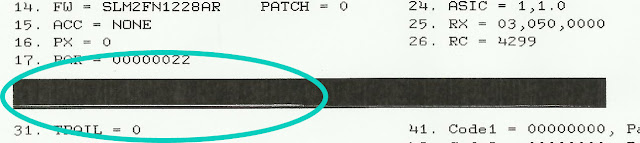

Meaning printing test series HP Deskjet 1000


In that case, we will have to clean the print heads to achieve good cleaning cartridges.

Steps to clean the printheads in HP Deskjet 1000 series


  • Prepare the printer: we turn it on and load plain paper in the tray
  • Open the printer program, go to "Printer Actions" >> "Maintenance Tasks".
  • Once in the "Toolbox Printer" click on "Clean Ink Cartridges" and follow the instructions that appear us.
  • Finally, it is best to return to print a test page.

Remember these steps to clean the heads dela HP printer used for the following models:
HP Deskjet 1000, Deskjet 1010, Deskjet 1050, Deskjet 1510, Deskjet 1512, Deskjet 1515.


Look at the original post in Consejos Impresoras

Wednesday, 27 April 2016

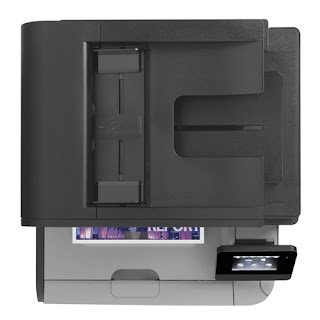
HP Laserjet Pro M476 MFP - Print page Cleaning

Home >> Help >> HP Laserjet Pro M476 MFP - Print page Cleaning


Print page Cleaning HP Laserjet Pro M476 MFP


Solution toner stains on prints


Print page Cleaning HP Laserjet Pro M476 MFP

It is possible that impressions can use to start out with stains or soils both front and back sides of the sheet. We think that laser printers take some supplies that are called carry toner and dust inside.
This dust is very fine and can get into any small hole or slot producing long problems in our printer.

Check out our post if you do not know what a toner or want to know how laser printers work.

It is important to perform maintenance on a regular basis for the printer to work as long as the first day and help to increase their shelf life so it is not more you take a look at post on some of our recommendations for maintaining the printer.


To print the cleaning page of the HP Laserjet Pro M476 MFP follow the steps below you say:


STEPS HP CLEANING PAGE


  • A4 plain paper loaded in the printer
  • With the printer on, we touch on the home screen the "Settings" button.
  • Now press the "Service" menu
  • Touch the OK button to start cleaning.
  • When you leave the blade, remove and re-load it into the tray with the same orientation and wait until the process is completed.


There are times we have to do this process several times since with one may not be enough. However, if you do it after the problem still exists, some of the consumables may be defective and then you have to change it.


Clean the scanner


Turn off the printer and disconnect it from the power cord to make sure it is turned off at all times.
Open the scanner lid and clean both the glass and the white plastic that is on the top with a cloth or sponge very soft and slightly dampened with glass cleaner. (Do not use abrasives as acetone, ammonia, alcohol and the like).
While dry glass and plastic with a dry lint-free cloth.
Connect the printer again and try to scan or copy something, go! You have your impeccable printer!


HP Laserjet Pro MFP M476

We also advise occasionally make an internal cleaning of the printer. To do this we will open the printer cover and we will draw one by one all replaceable components (toner, drum ...). With a dry cloth and if possible, lint-free, we all internal cleaning of the printer to remove any dust that may have accumulated. Then we will be placing one by one the components that we have taken.

If after changing the toner that is producing stains and having made several cleanings are coming out defects in the printer, it is best that you contact your service printer as the problem may be in any part of the printer that it can not be changed if not a professional.

HP laser printers offer very good results and have support behind you can help with the problems that will arise.


Look at the original post in Consejos Impresoras