Showing posts with label printer. Show all posts

Tuesday, 24 May 2016

What is a maintenance cartridge?

Printer Blog >> FAQ >> What is a maintenance cartridge?

Maintenance Cartridge


Maintenance cartridge description

Cartridge maintenance is a piece of laser printers that is responsible for collecting the toner remaining after the prints.
maintenance cartridge
cartucho de mantenimiento

For those who have a laser printer, once you've heard of the maintenance cartridge. Not all laser printers have them, but most large-format, ie, large printers as CANON IPF 6300, have this piece apart.


What is the function of a cartridge maintenance?


The maintenance cartridge is a part of some laser printers that is responsible for collecting the excess toner is ejected when printing. This piece, with use, there comes a time when it is filled.


Epson maintenance cartridge C13S020476


Thanks to sensors that are included, the printer itself detect when the maintenance cartridge is full, and then have to change it.

Tips printers will teach you more things about parts printers.


Source:

Printers that use little ink

Printer Blog >> Save >> Printers that use little ink

Printers that use little ink


Did you buy that printer was on offer for 30 €? Have you then regretted to see that the cartridges are worth more than the printer itself? Probably who answered yes to the first question ... .also made it to the second.

Printers who spend little


If we remember the saying "cheap is expensive" with printers corresponds to 100%. You can usually find a printer inkjet for 40 €, however, when buying cartridges, you will realize that these are quite expensive.

Generally, the inkjet printers typically spend more than the laser. The problem with the latter is that they usually cost more than € 100, so in the first instance, we can be expensive.

If what you're looking for is that the cost per copy as small as possible, we do recommend a mono laser printer (ie, that only print in black and white). The only thing is to renounce the colored end, but always can go to a reprographic printing in color, in the end, will be cheaper to print it at home with an inkjet printer.

As for models ... There are no specific models that use less than normal, but we recommend that are printers that can be configured the way it is printed. For example, in some Brother printers, you can activate the "toner saving mode". Thus, what it does is clarify a bit the tone of the prints, so you can see perfectly, but when printing, less toner is used.


Another way to get the most for print save is to buy economical ink. Currently there are many shops where you can buy supplies at a great price.


Source:


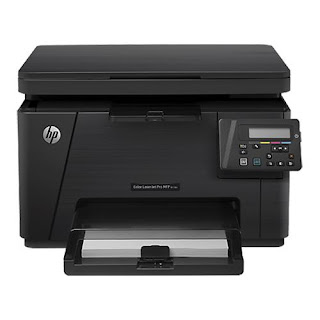
Printer cleaning HP Laserjet Pro M176 MFP

Printer Blog > Help >> Printer cleaning HP Laserjet Pro M176 MFP


Printer cleaning HP Laserjet Pro M176 MFP


Cleaning the HP Laserjet Pro M176 MFP Printer


This HP printer is a semi-professional printer that offers very good performance. If we continue to maintain print quality over time and the printer last us many years, vece have to perform a series of cleanings.

Then you leave the instructions recommended by the manufacturer to keep about your printer as the first day!


HP Laserjet Pro MFP M176


Print page Cleaning


As mentioned in another post, laser printers, with use, they are "smearing" inside the remains of toner powder. We must bear in mind that the toner powder is a very fine powder and can fit through any crack or hole of the printer. Sometimes, you can stay on the rollers and we can cause problems with print quality as spots, dots, stripes, lines, etc.

In order to solve this, we will print with the printer cleaning page.

  • In the control panel of your printer, press "Settings"
  • In the menu that opens, select "Service"
  • Now we choose "Cleaning Mode"
  • Load A4 size plain paper when prompted printer
  • Give the "OK" button and wait for the printer to remove the cleaning page.
  • When finished it will ask you to take back the sheet and reload it into the input tray with the same orientation.
  • Wait until you finish making the process and you can and discard the page.


Other times, it can happen that copies or scans leave us with little dots or fluffs that are unattractive to our impressions. This can deverse to the scanner may have accumulated dust or dirt and is affecting performance. To clean it, follow the steps listed you.


Clean the scanner

Turn off the printer and disconnect it from the power cord to make sure it is turned off at all times.
Open the scanner lid and clean both the glass and the white plastic that is on the top with a cloth or sponge very soft and slightly dampened with glass cleaner. (Do not use abrasives as acetone, ammonia, alcohol and the like).
While dry glass and plastic with a dry lint-free cloth.
Connect the printer again and try to scan or copy something, go! You have your impeccable printer!


These steps are also valid for the HP Laserjet printer Pro MFP M177


Source: 

Thursday, 5 May 2016

Ecotank Epson printer: the printer without cartridges

Home >> Buy Printer >> Ecotank Epson printer: the printer without cartridges

Epson Ecotank


Epson Ecotank
Epson printers without cartridges


A printer without cartridges? That's right, Epson has developed new printers Ecotank, the first in Spain that do not use cartridges. Want to know more about how they work? You'd tell you all!


Check out the video presentation of Epson Ecotank so you know what we're talking about.


The new Epson printers are changing the concept of printing, to print at home or in the office leave a luxury. There are two models: Epson L355 Ecotank, printer more or less small size, at a more affordable price, ideal to have it at home; and other more developed, the Epson L555 Ecotank with automatic feed scanner, better print quality and speed, more oriented companies, offices, etc.


These printers have a deposit on the side of the 4 main colors (black, cyan, magenta and yellow). These deposits have a capacity of 70ml each color, that the estimate made by the manufacturer allow us to print about 6,500 pages and 4,000 color of the black.

Ecotank Epson


Ecotank Epson printers features:


  •          Multifunction: print, copy and scan (The Epson L555 also includes fax)
  •          Connectivity via WIFI
  •          Printing from mobile devices


In Printers Tips we wanted to make a comparison with some more or less the same range supposed to know how much savings this type of printers.


We have selected a couple of other brands of printers whose characteristics are similar except for the ink:


Compare Epson printers with other similar Ecotank:

Home printers
Brother DCP-J552DW
HP ENVY 4500
Epson Ecotank L355
Multifunction
Yes
Yes
Yes
Conexion
USB y WIFI
USB y WIFI
USB y WIFI
Printer speed
12 ppmm
8.8 ppmm
9 ppmm
Paper capacity
100 sheets
100 sheets
100 sheets
Cost per copy (original cartridges)
0,09€
0,12€
0,01€


Impresoras para oficina
Brother DCP-J870DW
HP Officejet Pro 6830
Epson Ecotank L555
Multifunction
Yes + Fax
Yes
Sí + Fax
Conexion
USB, WIFI y Red
USB, WIFI y Red
USB y WIFI
Printer speed
12 ppmm
18 ppmm
15 ppmm
Paper capacity
100 sheets
225 sheets
100 sheets
Cost per copy (original cartridges)
0,09€
0,08€
0,01€


Look at the original post in Consejos Impresoras

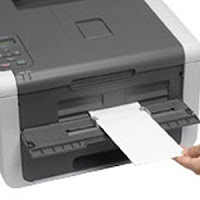
Brother HL-3140 laser printer Color

Home >> Buy Printer >> Brother HL-3140 Laser Printer Color


Brother HL-3140 laser printer Color


Brother HL-3140


Brother HL-3140


 Brother HL-3140


Description and features laser printer Brother HL-3140


This color laser printer is perfect for printing our color documents at a low cost and high quality. It is reduced in size so you can easily install it wherever you want, because you can use it as a desktop printer.


The Brother laser printers have always enjoyed being quality printers, durable and give few problems over time. Brother printers usually offer very good price, affordable to most consumers, like consumables that are not usually the most expensive. This printer uses individual toners and drums (although the latter are sold in one pack). This ensures optimum print quality because the color toner powder is transferred avoiding color mixtures.


Brother HL-3140


With this printer you can reduce costs and save space. It is designed for a small or medium office who need to print quality color documents.


Key Features Brother HL-3140:

  • Equipment Multifunction not: Just print
  • Connection / Interface: USB and Wifi Direct
  • Printing Method: Color Laser Printing
  • LC Display: Yes
  • Print resolution: 2400 x 600 dpi
  • Print speed: 18 ppb


The Brother HL-3140 printer is a printer designed for office use thanks to its high printing speed even color, because it is capable of printing 18 pages per minute in both black and white and full color. It is ready to print leaflets on quality paper with its print resolution of 2400 x 600 dpi, which for a laser printer, is pretty good. In addition, as mentioned, it is a comfortable printer with not much space and can install it on the table without problems.

This printer has the option to connect via USB directly to your computer or via WIFI. If you connect through the wireless network from any computer or device that is connected to the same network you can print directly to the printer. And thanks to its technology, is compatible with Apple AirPrint and Google Cloud Print so you can print directly from your Smartphone or tablet.

If you decide to connect the printer via USB, remember that printers do not usually include the cable so if you do not know very well that cable uses, you better take a look at this post.

The Brother HL-3140 duplex prints manually, so if you want to print in this way, we have to do first printing the odd pages and then the even.

Paper types supported by the Brother printer are enough, because it has a manual feed a sheet adapts to different sizes and paper supports:

  • A4
  • TO 5
  • A6
  • Letter
  • Legal
  • Envelopes
  • B5
  • Executive


Brother HL-3140In addition, this printer lets you print on plain paper, recycled, glossy paper, labels or envelopes.

The paper tray has a capacity of 250 sheets so will allow you to print large documents without having to be aware of the paper. Keep in mind that this printer is recommended for a monthly duty cycle of 1,500 pages.

The Brother HL-3140 is compatible with the following operating systems: Windows 7, Windows 8, Widows Server 2003 and 2008, Windows Vista and Windows XP.


What's in the Brother HL-3140 printer?

    Brother HL-3140
  • 4 toner cartridges
  • Brother HL-3140
  • 1 unit drum
  • Drive belt
  • Waste toner collector
  • Printer
  • Power cord
  • Software and drivers
  • User's Guide
  • Quick Setup Guide


Look at the original post in Consejos Impresoras

How old does a printer?

Home >> Buy Printer >> How old does a printer?

Lifetime of printers

How long a printer

How long a printer

The life of a printer depends on the use you give him and the type of printer. Normally laser printers typically last several years, because the mechanism that is stronger than the inkjet printers.
How long a printer


Inkjet printers, having more sensitive parts such as heads, according to most consumers, from 3 years to start printing problems. It is why many manufacturers such as HP, have made printers with separate heads, which may be changed as a cartridge. This prevents the need to change the printer or take it to service if you crashed head.

Recommendations to extend the life of your printer
A printer with good maintenance you can take considerably longer years, even sometimes happens that if we stop using the printer for a long time, breaks, since the inside of a printer is a bit delicate and if it gets dust and dirt can give working.

Maintaining a printer starts from the installation in a suitable place (no high humidity or heat, without being constantly is giving the sun, etc).

In inkjet printers, as mentioned, print continuously or at least once a week is important. This is because over time the ink cartridges are dry and this can leave damaged the printhead (which is a bit difficult to fix but depends on the model) and the cartridges themselves (if you dry the ink cartridges check out as clean to recover).

Toner in printers, is not as essential print every week, even if that after a long time without printing, you must shake the toner several times to spread well the toner powder inside.


Do head cleaning and nozzle check whenever we have problems printing is essential to keep the printer clean.

Some laser printers must be cleaned inside to remove toner dust that accumulates inside. In manual it comes as printers do better but just a cloth lint to remove dirt from every corner.

If we are to go on vacation, we recommend that printers ink cartridges withdraw and keep individual and closed bags. Printers, better cover them with what we have at hand and desenchufarlas of light and computer.

In short, as with everything, the more you care for more last us.

Look at the original post in Consejos Impresoras

How long is the liftime of a printer?

Home >> Buy Printer >> How old does a printer?

Lifetime of printers.


How long is the lifetime of a printer.


The life of a printer depends on the use you give him and the type of printer. Normally laser printers typically last several years, because the mechanism that is stronger than the inkjet printers.

Printer lifetime


Inkjet printers, having more sensitive parts such as heads, according to most consumers, from 3 years to start printing problems. It is why many manufacturers such as HP, have made printers with separate heads, which may be changed as a cartridge. This prevents the need to change the printer or take it to service if you crashed head.

Recommendations to extend the life of your printer
A printer with good maintenance you can take considerably longer years, even sometimes happens that if we stop using the printer for a long time, breaks, since the inside of a printer is a bit delicate and if it gets dust and dirt can give working.

Maintaining a printer starts from the installation in a suitable place (no high humidity or heat, without being constantly is giving the sun, etc).

In inkjet printers, as mentioned, print continuously or at least once a week is important. This is because over time the ink cartridges are dry and this can leave damaged the printhead (which is a bit difficult to fix but depends on the model) and the cartridges themselves (if you dry the ink cartridges check out as clean to recover).

Toner in printers, is not as essential print every week, even if that after a long time without printing, you must shake the toner several times to spread well the toner powder inside.


Do head cleaning and nozzle check whenever we have problems printing is essential to keep the printer clean.

Some laser printers must be cleaned inside to remove toner dust that accumulates inside. In manual it comes as printers do better but just a cloth lint to remove dirt from every corner.

If we are to go on vacation, we recommend that printers ink cartridges withdraw and keep individual and closed bags. Printers, better cover them with what we have at hand and desenchufarlas of light and computer.

In short, as with everything, the more you care for more last us.


Look at the original post in Consejos Impresoras

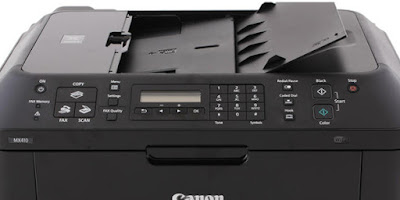
Canon Pixma MX410 printer (review)

Home >> Buy Printer >> Buy Printer Printer Canon Pixma MX-410 (review)


Canon Pixma MX-410

Canon Pixma MX-410

Canon Pixma MX-410
Nota impresora

Impresión desde el móvil

Impresiones mensuales

Impresora a color


Tipo: Multifunction ink
Precio medio: ~100€


Canon cartridges MX-410

Description and printer features Canon Pixma MX410

This multifunction printer is a printer that can be used for both home and for an office because it is a convenient printer that lets you print, scan, copy and fax from any computer thanks to WiFi connectivity. That is, any computer that is connected to the same network can access the printer to send documents to print or scan your own computer.


The Canon MX-410 printer uses two cartridges Canon FINE type, one black and one tricolor. These cartridges are available in standard version, containing 9 ml each cartridge; and XL, which already has 15 ml black and 13 ml color.

The Canon brand has its PIXMA line of printers that usually, usually, printers all "all in one" but still reasonable for most consumers can have either a printer for home or office price. These printers also carry software to print photos more creatively called "My Image Garden". This program allows you to easily sort your photos, including templates, video creator, etc.

Key Features Canon MX-410 printer

  • Multifunction System: Copy, scan and print
  • Connections / Interface: USB, WIFI and Bluetooth Ver 2.0.
  • Print Method: Thermal System or Bubble Jet
  • LC display: If (black and white)
  • Print resolution: 4,800 x 1,200 dpi
  • Print speed: 8.7 ppb (mono) and 5.0 ppb (color)
The Canon Pixma MX-410 multifunction printer is a versatile machine and can be used for both domestic impressions to an office. Speed, although not very high, falls within the average desktop inkjet printers, which is usually between 10 and 30 ppb. This printer, in particular, reaches nearly 10 ppb in black and white and 5.7 pages per minute in color, which really is not bad for a small office where documents sporadically but are printed daily. The maximum print resolution is 4,800 x 1,200 dpi, which is usually the standard Canon Pixma range.

Connectivity Canon MX-410 printer via both USB and WIFI, whatever we more comfortable. The nice thing about having WIFI is that any computer or device that is connected to the network can use the printer.

Canon MX-410 connection
In addition, Canon has an application called PIXMA Printing Solutions with which you can both print and scan from your Smartphone or tablet. This application can download us from the "Play Store" of the device called "PRINT Canon Inkjet / SELPHY" which already has a million downloads. From the app you can also see the ink levels, and download manuals and user guides. It is also compatible with Google Cloud Print and Apple AirPrint.


The printer has a scanner 21.6 x 29.7 cm with a maximum resolution of 1,200 x 2,400 dpi. A4 documents scanned in approximately 14 seconds and can do both color and black and white. The scanner Canon MX-410 allows you to scan JPEG, compact PDF or normal memory directly to the USB or computer. Program includes OCR text recognition.


The Canon MX-410 is a printer with fax, you can use it from your computer or from the printer itself. It allows you to send fax in color and black and white with a resolution up to 300 x 300 dpi. 
Fax Canon MX-410
The printer can save documents directly to the USB Flash memory that connect you. It allows redial, connect the answering machine, coded speed dials and group, among other things.


It supports multiple media types, both normal and photographic, labels and even paper "transfer" used for prints on shirts. It also has a customizable paper tray to print the following sizes:
  • A4
  • B5
  • TO 5
  • Letter
  • Legal
  • envelopes DL
  • about COM10
  • 10x15cm
  • 13x18cm
  • 20x25cm


The paper input tray of the Canon printer is a maximum of 100 sheets and can print on plain paper up to a weight of 300 g / m². In addition, this printer is very comfortable for double-sided printing as it has the option of automatic duplex so you do not have to do it manually.


The operating systems supported by the Canon MX-410 printer are as follows: Windows XP SP ", SP3, Windows Vista, Windows 7 and Mac OS X v.10.4.11 - 10.6.


Canon Pixma MX-410
What's in the Canon MX-410 printer?

  • 2 separate ink cartridges
  • Printer
  • Power cord
  • Manual
  • Printer Software


Additional information printer Canon Pixma MX-410:


Look at the original post in Consejos Impresoras