Showing posts with label support. Show all posts

Wednesday, 27 April 2016

Canon Pixma MP230 Change Cartridges


Home >> Help >> Change Cartridges Canon Pixma MP230


Canon MP-230 Printer


Change printer cartridges Canon Pixma MP-230


Canon MP-230When we have to change cartridges Canon Pixma MP230 our, it is very important not to touch the connectors because it can damage them. Connectors are a metal chapita also known as "chip" if, for example, this chip is dirty or damaged, it can cause the printer not detected properly and the cartridge unusable stay.


The cartridges are changed when the printer throws a warning via computer or if you have, through your screen. This printer uses two ink cartridges, one black and one tricolor. Normally printers require both cartridges are properly installed in order to work well, but only go to print in black and white.


Before you begin, you keep the printer ready to print. Once we have connected the printer is on, follow these steps:


  • Lift the scanner cover as shown in the image.
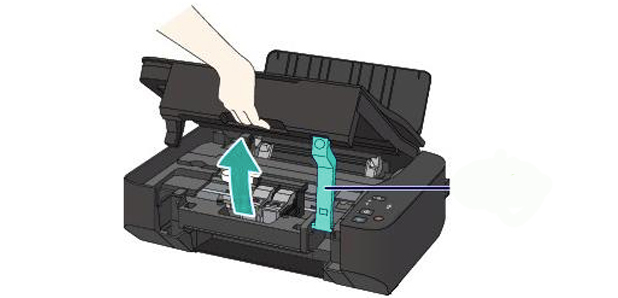
change cartridges canon MP230
Source: Canon.es


  • Remove the cartridges holding fins cartridges and uploading them.
  • Open the new cartridge by removing all seals (remember not to touch any connector).
  • We insert the new cartridge (each in place) until it engages with a slight click.
change cartridges Canon MP230
Source: Canon.es


  • Put down the printer cover and voila!


These steps also serve you to change cartridges following printers:

Canon Pixma iP2700 Canon Pixma iP2702, Canon Pixma MP230, Canon Pixma MP235, Canon Pixma MP240, Canon Pixma MP250, Canon Pixma MP252, Canon Pixma MP260, Canon Pixma MP270, Canon Pixma MP272, Canon Pixma MP280, Canon Pixma MP282, Canon Pixma MP480, MP490 Canon Pixma Canon Pixma MP492, Pixma MP495 Canon, Canon Pixma MP499, Canon Pixma MX320, Pixma MX330 Canon, Canon Pixma MX340, Pixma MX350 Canon, Canon Pixma MX360, MX410 and Canon Pixma MX420 Canon Pixma.


Look at the original post in Consejos Impresoras

Indicator Light "Error" orange Brother printer

Home >> Help >> Indicator Light "Error" orange Brother printer


Error light lit or flashing


The orange light on the printer is on or flashing (solution)


On some printers Brother can find several indicative of light that inform us about the status of the printer. Usually they have a light on and off, to see if the printer is on; and another of an error, which may indicate an internal problem that must be overcome.

Depending on the problem you have the printer and printer model, light can indicate one thing or another.


Printers indicators "DRUM" and "Error"

In case you have a printer with an LED indicator that says "DRUM" and another indicator that says "Error". The meanings of the lights are different:


Light "Drum" and flashing light "Ready" in green.

Brother drum lightIf the drum lights or turn on the printer and then suddenly starts blinking orange light "Drum" this means that the drum is running out and therefore have to change soon.

If you have installed a new drum, this may have occurred will not reset the counter of the drum unit. Check out the post on how to reset the counter drum Brother printers.


Light "Drum" permanently lit and light "Ready" in green.

Brother drum lightIf the drum light is on permanently, that is that the drum has reached its end of life and you have to change it to continue printing.

It may have happened that, when installing a new drum, have not reset the drum counter, so you'll have to reset the printer to detect it as new drum.


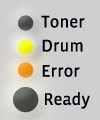
Light "Drum" light on and "Error" in orange.

Brother drum light
If both lights are on, it indicates a lock drum. In these cases, we recommend reinstalling the drum again and restart the counter of the printer to clear the error.


Printers with a single indicator light (!)


This is the simplest case of printers having only two indicator lights.


Error light "(!)" Flashes 3 times and off for one second


luz tambor BrotherThe lights pattern indicates the end of life of the drum soon or you have to replace it because it is already exhausted.

In case you have recently changed the drum and flashing light appears you'll have to tell the printer that you have changed the drum for a new one so you have to reset the counter.


There are more meanings of the indicator lights Brother printers. If you have not found the fault that is giving you, check out the post on the meaning of the lights Brother printers.


These information is valid for the following printer models:

Brother HL-10H Brother HL-600, Brother HL-630, Brother HL-631, Brother HL-641, Brother HL-645, Brother HL-650, Brother HL-655, Brother HL-660, Brother HL-665, Brother HL-700, Brother HL-720, Brother HL-730, Brother HL-760, Brother HL-820, Brother HL-960, Brother HL-1030, Brother HL-1040, Brother HL-1050, Brother HL-1060, Brother HL-1070, Brother HL-1110, Brother HL-1112, Brother HL-1200, Brother HL-1210, Brother HL-1212, Brother HL-1230, Brother HL-1240, Brother HL-1250, Brother HL-1260, Brother HL-1270, Brother HL-1400, Brother HL-1430, Brother HL-1435, Brother HL-1440, Brother HL-1450, Brother HL-1470, Brother HL-1650, Brother HL-1660, Brother HL-1670, Brother HL-1750, Brother HL-1800, Brother HL-1870, Brother HL-2030, Brother HL-2035, Brother HL-2040, Brother HL-2060, Brother HL-2070, Brother HL-2130, Brother HL-2135, Brother HL-2140, Brother HL-2150, Brother HL-2240, Brother HL-2250, Brother HL-2270, Brother HL-2400, Brother HL-2460, Brother HL-2600, Brother HL-2700, Brother HL-3040, Brother HL-3070, Brother HL-3140, Brother HL-3150, Brother HL-3170, Brother HL-3400, Brother HL-3450, Brother HL-4000, Brother HL-4040, Brother HL-4050, Brother HL-4070, Brother HL-4140, Brother HL-4150, Brother HL-4200, Brother HL-4570, Brother HL-5000, Brother HL-5030, Brother HL-5040, Brother HL-5050, Brother HL-5070, Brother HL-5130, Brother HL-5140, Brother HL-5150, Brother HL-5170, Brother HL-5250, Brother HL-5270, Brother HL-5280, Brother HL-5340, Brother HL-5350, Brother HL-5370, Brother HL-5380, Brother HL-5450, Brother HL-6050, Brother HL-7050, Brother HL-8000, Brother HL-9000, Brother HL-4, Brother HL-P2000 and Brother HL-P2500.


Look at the original post in Consejos Impresoras

Saturday, 16 April 2016

Tips and tricks on drums printer

Home >> Help >> Tips and Tricks on drums printer


Tips drum printer


Laser printer drum


Laser printer drum

Here we present some questions that we normally do those who have a printer drum.

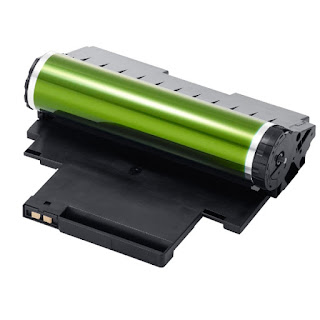
As we explained in a previous post, the drum is known by several names: drum imaging unit, drum ... It is a very delicate piece of laser printers is perishing with use.

The drum is responsible for transferring the toner powder to the paper, so sometimes when the drum is dirty, defective or is running out, can get out dirty or dark background prints.

Let's answer some questions we can get to do when we have a laser printer.


If I clean the drum I can avoid change?


The drum has a certain life since the use is perishing. As much as you clean it with a cloth ... if the drum is exhausted, there is nothing to do :-(

Is it better to independent drum or integrated with the toner?


It is a question that many people do and ... there is no clear answer. It all depends on the use you are going to give to the printer.
If you go to print a few copies a year, it is best to buy a printer with separate drum, and the drum will wear less and will last much more than the toner, so that the parts will come out cheaper.
But if you'll give much cane to the printer, ie going to print daily a fairly high volume, it is better than the drum will already integrated with the toner, since it is you wear before and eventually, out cheaper toner drum integrated buy a toner + drum.


Can you give light to the drum?


We recommend that the less time the drum is exposed to the best light, to prevent can give us problems.


Look at the original post in Consejos Impresoras