Showing posts with label ink. Show all posts

Wednesday, 1 June 2016

Change cartridges HP Deskjet 1000 series

Printer Blog >> Help >> Change cartridges HP Deskjet 1000 series

HP Deskjet 1000 series


Change printer cartridges HP Deskjet 1000, Deskjet 1010, Deskjet 1050, Deskjet 1510, Deskjet 1512, Deskjet 1515.

To change printer cartridges HP Deskjet 1000 series you can follow the instructions in the manual that includes or perform the following steps:


Hp Deskjet 1050

Steps to change the ink cartridges


  • Verify that the printer is connected and that paper. In order to change the printer cartridge correctly must be like if you were to print.
  • Open the cartridge door is at the front. You will see that the car with the cartridges will begin to move to move to the center. Expected to stay standing in the center to remove the cartridges.
  • Press down the cartridge gently until you feel disengages. Sometimes it takes a bit but can usually be easily removed, I remove it from its slot.
  • Open the new cartridge and carefully remove the protective tape. This usually takes a striking and directions on how to remove color. It serves to protect the head cartridge because in these models is integrated. Try not touch the head or contacts, as dirt can cause the cartridge to malfunction.
  • Insert the new cartridge until you hear a click. Make sure you're getting in the right place. If you're trying to get the cartridge and see that you do not fit, try to get him into the next slot because it can not be that your site :-).
  • Close the cartridge door and wait for the printer to perform their "homework".


Once installed a new cartridge, it is best to take out a print test to verify that it works correctly.

More accurate impression you would like shown below:

Print test HP Deskjet 1000


If you have left you with some color spots or it does not work, then you have to perform head cleaning with printer software or manually.

Remember these steps to clean the heads dela HP printer used for the following models:
HP Deskjet 1000, Deskjet 1010, Deskjet 1050, Deskjet 1510, Deskjet 1512, Deskjet 1515.


How to install the ink cartridges in the Epson Stylus Pro 7880/9880


Printer Blog >> Help >> How to install the ink cartridges in the Epson Stylus Pro 7880/9880

How to install the ink cartridges in the Epson Stylus Pro 7880/9880


Steps to install the ink cartridges


Epson Stylus Pro 7880/9880Today we'll try to help install the ink cartridges in the Epson Stylus Pro 7880 printer and plotter 9880. These are for professional use and are very well received by those who are engaged in the printing of posters, brochures, etc. Epson offers very good picture quality in almost all printers thanks to the technology used in their cartridges and ink type.

If you are printing large jobs it is better check before the ink levels because you can stay with the job half done, unless you have a replacement cartridge.


When i have to change the ink cartridge?

Thanks to the LCD screen of these plotters can see the 8 slots corresponding to each of the ink cartridges indicating percentage of remaining ink. When the red ink (teardrop) is flashing and the message that "low on ink" is when you have to start preparing a replacement cartridge appears on the screen.
When the red light is on permanently on the screen the message you replace the cartridge so it is displayed when you have to replace it


How to change the ink cartridge


  • The first thing you have to do is give the power button.
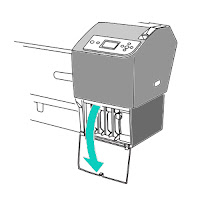
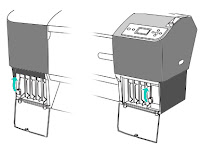
  • Then you must open the cover of the ink cartridges down and up the levers up to unlock the cartridges.


Epson Stylus Pro 7880/9880 change cartridgesEpson Stylus Pro 7880/9880 change cartridges

Source: https://files.support.epson.com/pdf/pro7880/pro7880gd6.pdf

  • Remove the ink cartridge in the printer that are about to change.
  • Take out the new ink cartridge from its packaging and shake.
  • Epson Stylus Pro 7880/9880 change cartridges
  • Source: https://files.support.epson.com/pdf/pro7880/pro7880gd6.pdf
  • Insert the ink cartridge and verify that the printer has detected across the LCD.
  • After installing the ink cartridge, lower the ink lever. The printer starts charging the ink delivery system and the power indicator is flashing.

That is all! We have prepared our plotter to print our wonderful work!


Original post: Cómo instalar los cartuchos de tinta en la Epson Stylus Pro 7880/9880

Tuesday, 10 May 2016

Ink systems print

Printer Blog >> FAQ >> Ink systems print

Ink printing systems


Types of printing systems that can use inkjet printers.


There are many types of printing but there are two systems that are most common on the market:


Ink printing systems


Thermal printing system or Bubble Jet.

Some brands such as HP, Canon, Xerox Lexmar or use this system for printing. Basically it consists of applying heat to the ink within the cartridge by electric current through resistors.

The heat causes the ink to rise to temperatures up to 500 ° C which generates a bubble enlarges. This bubble pushes the ink to the outside through microducts having a cartridge to the cartridge head.

That is why this type of printers catch high temperatures and should be protected and a bit humid place.

Cartridges normally used in this system are more expensive but printers have less maintenance because the heads are replaced with the cartridge.

Piezo-electric system.


This system, instead of carrying resistors, takes a piezoelectric material which generates a movement when applied electrical charge. It is the system used by Epson printers.

Like the Bubble Jet system, this makes a pressure by the movement of piezo-electric crystal ejecting ink out through the conduits of the cartridge. With this technology, you can use special pigment inks resistant to moisture and the quality of prints is greater. That is why Epson printers have a good photo quality.

Check out the source at Tipos de impresión con cartuchos

Printers that spend low ink

Home >> Buy printer >> Printers that spend low ink

Did you buy that printer was on offer for 30 €? Have you then regretted to see that the cartridges are worth more than the printer itself? Probably who answered yes to the first question ... .also made it to the second.
Printers who spend little
Impresoras que gasten poco

If we remember the saying "cheap is expensive" with printers corresponds to 100%. You can usually find a printer inkjet for 40 €, however, when buying cartridges, you will realize that these are quite expensive.

Generally, the inkjet printers typically spend more than the laser. The problem with the latter is that they usually cost more than € 100, so in the first instance, we can be expensive.

If what you're looking for is that the cost per copy as small as possible, we do recommend a mono laser printer (ie, that only print in black and white). The only thing is to renounce the colored end, but always can go to a reprographic printing in color, in the end, will be cheaper to print it at home with an inkjet printer.

As for models ... There are no specific models that use less than normal, but we recommend that are printers that can be configured the way it is printed. For example, in some Brother printers, you can activate the "toner saving mode". Thus, what it does is clarify a bit the tone of the prints, so you can see perfectly, but when printing, less toner is used.


Another way to get the most for print save is to buy economical ink. Currently there are many shops where you can buy supplies at a great price.

You can see the original post at Impresoras que gasten poco

Thursday, 5 May 2016

Canon MX410 printer cartridges

Home >> Help >> Cartuchos impresora Canon MX-410

Canon Pixma Ink Cartridges MX-410


Canon ink


The Canon MX-410 printer is a inkjet printer, this means that consumables are using ink cartridges. This particular printer uses two ink cartridges, one black and one tricolor FINE type.

Canon FINE cartridges are a type of cartridges, and contain the ink, have built the print head, so that when you change the cartridge, you also change the printhead. These cartridges are both standard version of 9ml, as XL version for those who print more quantity, with 15 and 13ml.


Canon ink cartridges Standard

Name: Cartridge Canon PG-510
Canon cartridge PG-510

Name: Canon CL-511 Cartridge
Canon CL-511 Cartridge

OEM Reference:2970B001
OEM Reference: 2972B001

Ml: 9 ml
Ml: 9 ml

Colour


Colour


Canon XL ink cartridges


Name: Cartridge Canon PG-512
Canon cartridge PG-512


Name: Canon CL-513 Cartridge
Canon CL-513 Cartridge

OEM Reference: 2969B001
OEM Reference: 2971B001

Ml: 15 ml
Ml: 13 ml

Colour


Colour


Canon Savings Packs


Name: Canon Pack PG510 and CL511
Canon Pack ahorro PG510 y CL511


OEM Reference: 2970B010


Ml: 2 x 9 ml


Colour


These Canon Pixma printer cartridges are also valid for the following printers:
Canon Pixma iP 2700, Canon Pixma iP 2702, Canon Pixma MP 230, Canon Pixma MP 235, Canon Pixma MP 240, Canon Pixma MP 250, Canon Pixma MP 252, Canon Pixma MP 260, Canon Pixma MP 270, Canon Pixma MP 272, Canon Pixma MP 280, Canon Pixma MP 282, Canon Pixma MP 480, Canon Pixma MP 490, Canon Pixma MP 492, Canon Pixma MP 495, Canon Pixma MP 499, Canon Pixma MX 320, Canon Pixma MX 330, Canon Pixma MX 340, Canon Pixma MX 350 and MX 360 Canon Pixma.


Look at the original post in Consejos Impresoras

Ecotank Epson printer: the printer without cartridges

Home >> Buy Printer >> Ecotank Epson printer: the printer without cartridges

Epson Ecotank


Epson Ecotank
Epson printers without cartridges


A printer without cartridges? That's right, Epson has developed new printers Ecotank, the first in Spain that do not use cartridges. Want to know more about how they work? You'd tell you all!


Check out the video presentation of Epson Ecotank so you know what we're talking about.


The new Epson printers are changing the concept of printing, to print at home or in the office leave a luxury. There are two models: Epson L355 Ecotank, printer more or less small size, at a more affordable price, ideal to have it at home; and other more developed, the Epson L555 Ecotank with automatic feed scanner, better print quality and speed, more oriented companies, offices, etc.


These printers have a deposit on the side of the 4 main colors (black, cyan, magenta and yellow). These deposits have a capacity of 70ml each color, that the estimate made by the manufacturer allow us to print about 6,500 pages and 4,000 color of the black.

Ecotank Epson


Ecotank Epson printers features:


  •          Multifunction: print, copy and scan (The Epson L555 also includes fax)
  •          Connectivity via WIFI
  •          Printing from mobile devices


In Printers Tips we wanted to make a comparison with some more or less the same range supposed to know how much savings this type of printers.


We have selected a couple of other brands of printers whose characteristics are similar except for the ink:


Compare Epson printers with other similar Ecotank:

Home printers
Brother DCP-J552DW
HP ENVY 4500
Epson Ecotank L355
Multifunction
Yes
Yes
Yes
Conexion
USB y WIFI
USB y WIFI
USB y WIFI
Printer speed
12 ppmm
8.8 ppmm
9 ppmm
Paper capacity
100 sheets
100 sheets
100 sheets
Cost per copy (original cartridges)
0,09€
0,12€
0,01€


Impresoras para oficina
Brother DCP-J870DW
HP Officejet Pro 6830
Epson Ecotank L555
Multifunction
Yes + Fax
Yes
Sí + Fax
Conexion
USB, WIFI y Red
USB, WIFI y Red
USB y WIFI
Printer speed
12 ppmm
18 ppmm
15 ppmm
Paper capacity
100 sheets
225 sheets
100 sheets
Cost per copy (original cartridges)
0,09€
0,08€
0,01€


Look at the original post in Consejos Impresoras

WHY CHOOSE: tricolor cartridge vs. three cartridges

Home >> FAQ >> WHY CHOOSE: tricolor cartridge vs. three cartridges

Printers with 3 single tri-color cartridge or cartridges

ink cartridges


¿Tricolor ink cartridges or three cartridges?


Tricolor ink cartridges or three loose ink cartridges, the great dilemma. Besides recommend you to read our guide recommendations to keep in mind when buying a new printer, we need to see the own tricolor ink cartridges and loose the three cartridges of each color ink characteristics.


Type ink cartridges and components


On the one hand we must know that in most cases, the tri-color cartridges include the print head, which, in theory you should save on the one hand, you lose when you buy a more expensive product. But of course ... the printers with tri-color cartridge, tend to be cheaper, because, just lack printhead and this among many other things, can lower the cost price of the printer.

How the colors are achieved?

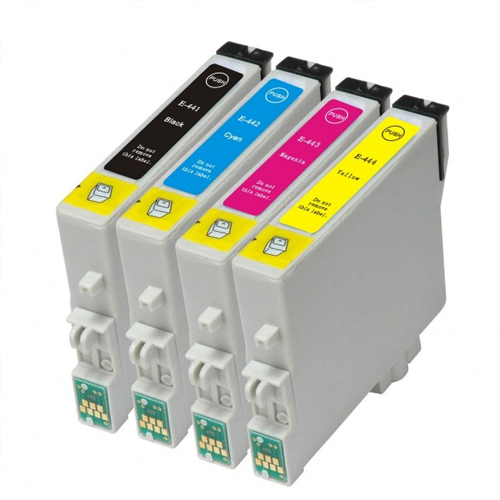
You should know that to get a color print, the mixture of four colors of the four main colors, ie, black, cyan, magenta and yellow is performed. So, having individual cartridges, you probably get optimize performance and utilization of all colors with which mixtures are made. I give you an example that describes this graphically.


ink colors


Create the orange through or CMYK four-color (acronym for the four main colors mentioned above), it requires:

  • 0% cyan
  • 50% magenta
  • 100% yellow
  • 0% black


With this example easily we demonstrate that it is dangerous to buy a printer of this type if the logo of your company or project is orange, because large amount of cyan will remain unused before you have to change the ink cartridge from your printer.

If you're going to make a household printer, if we recommend this type of printer, because ... really for the low cost and print have sporadically or even things in black, it makes sense to use these printers. If this is not the case and you decant for an inkjet printer ink is more advisable although it has a higher cost of implementation (more expensive printer), you do do with a printer ink cartridges with independent colors, ie three cartridges.


Look at the original post in Consejos Impresoras

Wednesday, 27 April 2016

Canon Pixma MP230 Change Cartridges


Home >> Help >> Change Cartridges Canon Pixma MP230


Canon MP-230 Printer


Change printer cartridges Canon Pixma MP-230


Canon MP-230When we have to change cartridges Canon Pixma MP230 our, it is very important not to touch the connectors because it can damage them. Connectors are a metal chapita also known as "chip" if, for example, this chip is dirty or damaged, it can cause the printer not detected properly and the cartridge unusable stay.


The cartridges are changed when the printer throws a warning via computer or if you have, through your screen. This printer uses two ink cartridges, one black and one tricolor. Normally printers require both cartridges are properly installed in order to work well, but only go to print in black and white.


Before you begin, you keep the printer ready to print. Once we have connected the printer is on, follow these steps:


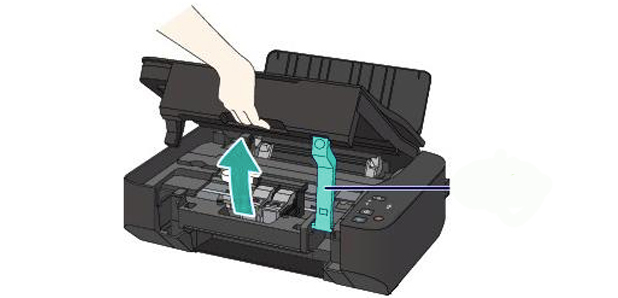
  • Lift the scanner cover as shown in the image.
change cartridges canon MP230
Source: Canon.es


  • Remove the cartridges holding fins cartridges and uploading them.
  • Open the new cartridge by removing all seals (remember not to touch any connector).
  • We insert the new cartridge (each in place) until it engages with a slight click.
change cartridges Canon MP230
Source: Canon.es


  • Put down the printer cover and voila!


These steps also serve you to change cartridges following printers:

Canon Pixma iP2700 Canon Pixma iP2702, Canon Pixma MP230, Canon Pixma MP235, Canon Pixma MP240, Canon Pixma MP250, Canon Pixma MP252, Canon Pixma MP260, Canon Pixma MP270, Canon Pixma MP272, Canon Pixma MP280, Canon Pixma MP282, Canon Pixma MP480, MP490 Canon Pixma Canon Pixma MP492, Pixma MP495 Canon, Canon Pixma MP499, Canon Pixma MX320, Pixma MX330 Canon, Canon Pixma MX340, Pixma MX350 Canon, Canon Pixma MX360, MX410 and Canon Pixma MX420 Canon Pixma.


Look at the original post in Consejos Impresoras