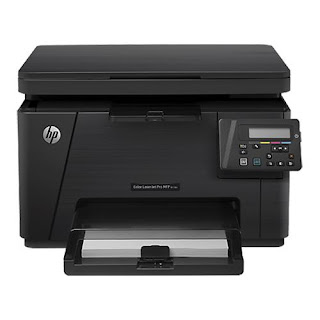
Error light lit or flashing
The orange light on the printer is on or flashing (solution)
On some printers Brother can find several indicative of light that inform us about the status of the printer. Usually they have a light on and off, to see if the printer is on; and another of an error, which may indicate an internal problem that must be overcome.
Depending on the problem you have the printer and printer model, light can indicate one thing or another.
Printers indicators "DRUM" and "Error"
In case you have a printer with an LED indicator that says "DRUM" and another indicator that says "Error". The meanings of the lights are different:Light "Drum" and flashing light "Ready" in green.
 If the drum lights or turn on the printer and then suddenly starts blinking orange light "Drum" this means that the drum is running out and therefore have to change soon.
If you have installed a new drum, this may have occurred will not reset the counter of the drum unit. Check out the post on how to reset the counter drum Brother printers.
Light "Drum" permanently lit and light "Ready" in green.
 If the drum light is on permanently, that is that the drum has reached its end of life and you have to change it to continue printing.
It may have happened that, when installing a new drum, have not reset the drum counter, so you'll have to reset the printer to detect it as new drum.
Light "Drum" light on and "Error" in orange.
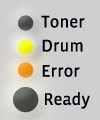
If both lights are on, it indicates a lock drum. In these cases, we recommend reinstalling the drum again and restart the counter of the printer to clear the error.
Printers with a single indicator light (!)
This is the simplest case of printers having only two indicator lights.
Error light "(!)" Flashes 3 times and off for one second
 The lights pattern indicates the end of life of the drum soon or you have to replace it because it is already exhausted.
In case you have recently changed the drum and flashing light appears you'll have to tell the printer that you have changed the drum for a new one so you have to reset the counter.
There are more meanings of the indicator lights Brother printers. If you have not found the fault that is giving you, check out the post on the meaning of the lights Brother printers.
These information is valid for the following printer models:
Brother HL-10H Brother HL-600, Brother HL-630, Brother HL-631, Brother HL-641, Brother HL-645, Brother HL-650, Brother HL-655, Brother HL-660, Brother HL-665, Brother HL-700, Brother HL-720, Brother HL-730, Brother HL-760, Brother HL-820, Brother HL-960, Brother HL-1030, Brother HL-1040, Brother HL-1050, Brother HL-1060, Brother HL-1070, Brother HL-1110, Brother HL-1112, Brother HL-1200, Brother HL-1210, Brother HL-1212, Brother HL-1230, Brother HL-1240, Brother HL-1250, Brother HL-1260, Brother HL-1270, Brother HL-1400, Brother HL-1430, Brother HL-1435, Brother HL-1440, Brother HL-1450, Brother HL-1470, Brother HL-1650, Brother HL-1660, Brother HL-1670, Brother HL-1750, Brother HL-1800, Brother HL-1870, Brother HL-2030, Brother HL-2035, Brother HL-2040, Brother HL-2060, Brother HL-2070, Brother HL-2130, Brother HL-2135, Brother HL-2140, Brother HL-2150, Brother HL-2240, Brother HL-2250, Brother HL-2270, Brother HL-2400, Brother HL-2460, Brother HL-2600, Brother HL-2700, Brother HL-3040, Brother HL-3070, Brother HL-3140, Brother HL-3150, Brother HL-3170, Brother HL-3400, Brother HL-3450, Brother HL-4000, Brother HL-4040, Brother HL-4050, Brother HL-4070, Brother HL-4140, Brother HL-4150, Brother HL-4200, Brother HL-4570, Brother HL-5000, Brother HL-5030, Brother HL-5040, Brother HL-5050, Brother HL-5070, Brother HL-5130, Brother HL-5140, Brother HL-5150, Brother HL-5170, Brother HL-5250, Brother HL-5270, Brother HL-5280, Brother HL-5340, Brother HL-5350, Brother HL-5370, Brother HL-5380, Brother HL-5450, Brother HL-6050, Brother HL-7050, Brother HL-8000, Brother HL-9000, Brother HL-4, Brother HL-P2000 and Brother HL-P2500.
Look at the original post in Consejos Impresoras