Showing posts with label print quality. Show all posts

Tuesday, 24 May 2016

Printer cleaning HP Laserjet Pro M176 MFP

Printer Blog > Help >> Printer cleaning HP Laserjet Pro M176 MFP


Printer cleaning HP Laserjet Pro M176 MFP


Cleaning the HP Laserjet Pro M176 MFP Printer


This HP printer is a semi-professional printer that offers very good performance. If we continue to maintain print quality over time and the printer last us many years, vece have to perform a series of cleanings.

Then you leave the instructions recommended by the manufacturer to keep about your printer as the first day!
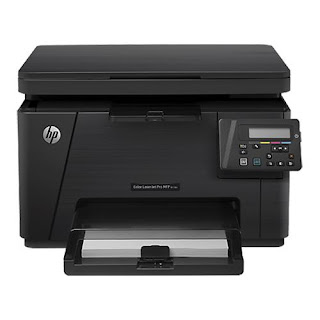


HP Laserjet Pro MFP M176


Print page Cleaning


As mentioned in another post, laser printers, with use, they are "smearing" inside the remains of toner powder. We must bear in mind that the toner powder is a very fine powder and can fit through any crack or hole of the printer. Sometimes, you can stay on the rollers and we can cause problems with print quality as spots, dots, stripes, lines, etc.

In order to solve this, we will print with the printer cleaning page.

  • In the control panel of your printer, press "Settings"
  • In the menu that opens, select "Service"
  • Now we choose "Cleaning Mode"
  • Load A4 size plain paper when prompted printer
  • Give the "OK" button and wait for the printer to remove the cleaning page.
  • When finished it will ask you to take back the sheet and reload it into the input tray with the same orientation.
  • Wait until you finish making the process and you can and discard the page.


Other times, it can happen that copies or scans leave us with little dots or fluffs that are unattractive to our impressions. This can deverse to the scanner may have accumulated dust or dirt and is affecting performance. To clean it, follow the steps listed you.


Clean the scanner

Turn off the printer and disconnect it from the power cord to make sure it is turned off at all times.
Open the scanner lid and clean both the glass and the white plastic that is on the top with a cloth or sponge very soft and slightly dampened with glass cleaner. (Do not use abrasives as acetone, ammonia, alcohol and the like).
While dry glass and plastic with a dry lint-free cloth.
Connect the printer again and try to scan or copy something, go! You have your impeccable printer!


These steps are also valid for the HP Laserjet printer Pro MFP M177


Source: 

Thursday, 5 May 2016

HP Laserjet Pro M476 MFP - Print page Cleaning

Home >> Help  >> HP Laserjet Pro M476 MFP - Print page Cleaning


Print page Cleaning HP Laserjet Pro M476 MFP 


Solution toner stains on prints


Print page Cleaning HP Laserjet Pro M476 MFP It is possible that impressions can use to start out with stains or soils both front and back sides of the sheet. We think that laser printers take some supplies that are called carry toner and dust inside.
This dust is very fine and can get into any small hole or slot producing long problems in our printer.
Check out our post if you do not know what a toner or want to know how laser printers work.

It is important to perform maintenance on a regular basis for the printer to work as long as the first day and help to increase their shelf life so it is not more you take a look at post on some of our recommendations for maintaining the printer.

To print the cleaning page of the HP Laserjet Pro M476 MFP follow the steps below you say:


HP STEPS CLEANING PAGE

  • A4 plain paper loaded in the printer
  • With the printer on, we touch on the home screen the "Settings" button.
  • Now press the "Service" menu
  • Touch the OK button to start cleaning.
  • When you leave the blade, remove and re-load it into the tray with the same orientation and wait until the process is completed.


There are times we have to do this process several times since with one may not be enough. However, if you do it after the problem still exists, some of the consumables may be defective and then you have to change it.


Clean the scanner


  • Turn off the printer and disconnect it from the power cord to make sure it is turned off at all times.
  • Open the scanner lid and clean both the glass and the white plastic that is on the top with a cloth or sponge very soft and slightly dampened with glass cleaner. (Do not use abrasives as acetone, ammonia, alcohol and the like).
  • While dry glass and plastic with a dry lint-free cloth.
  • Connect the printer again and try to scan or copy something, go! You have your impeccable printer!


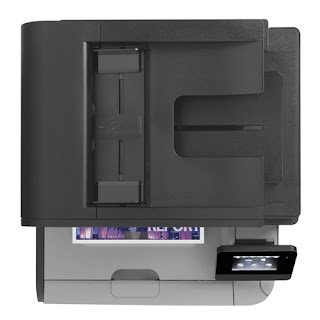
HP Laserjet Pro MFP M476


We also advise occasionally make an internal cleaning of the printer. To do this we will open the printer cover and we will draw one by one all replaceable components (toner, drum ...). With a dry cloth and if possible, lint-free, we all internal cleaning of the printer to remove any dust that may have accumulated. Then we will be placing one by one the components that we have taken.

If after changing the toner that is producing stains and having made several cleanings are coming out defects in the printer, it is best that you contact your service printer as the problem may be in any part of the printer that it can not be changed if not a professional.

HP laser printers offer very good results and have support behind you can help with the problems that will arise.


Look at the original post in Consejos Impresoras

Wednesday, 27 April 2016

HP Laserjet Pro M476 MFP - Print page Cleaning

Home >> Help >> HP Laserjet Pro M476 MFP - Print page Cleaning


Print page Cleaning HP Laserjet Pro M476 MFP


Solution toner stains on prints


Print page Cleaning HP Laserjet Pro M476 MFP

It is possible that impressions can use to start out with stains or soils both front and back sides of the sheet. We think that laser printers take some supplies that are called carry toner and dust inside.
This dust is very fine and can get into any small hole or slot producing long problems in our printer.

Check out our post if you do not know what a toner or want to know how laser printers work.

It is important to perform maintenance on a regular basis for the printer to work as long as the first day and help to increase their shelf life so it is not more you take a look at post on some of our recommendations for maintaining the printer.


To print the cleaning page of the HP Laserjet Pro M476 MFP follow the steps below you say:


STEPS HP CLEANING PAGE


  • A4 plain paper loaded in the printer
  • With the printer on, we touch on the home screen the "Settings" button.
  • Now press the "Service" menu
  • Touch the OK button to start cleaning.
  • When you leave the blade, remove and re-load it into the tray with the same orientation and wait until the process is completed.


There are times we have to do this process several times since with one may not be enough. However, if you do it after the problem still exists, some of the consumables may be defective and then you have to change it.


Clean the scanner


Turn off the printer and disconnect it from the power cord to make sure it is turned off at all times.
Open the scanner lid and clean both the glass and the white plastic that is on the top with a cloth or sponge very soft and slightly dampened with glass cleaner. (Do not use abrasives as acetone, ammonia, alcohol and the like).
While dry glass and plastic with a dry lint-free cloth.
Connect the printer again and try to scan or copy something, go! You have your impeccable printer!


HP Laserjet Pro MFP M476

We also advise occasionally make an internal cleaning of the printer. To do this we will open the printer cover and we will draw one by one all replaceable components (toner, drum ...). With a dry cloth and if possible, lint-free, we all internal cleaning of the printer to remove any dust that may have accumulated. Then we will be placing one by one the components that we have taken.

If after changing the toner that is producing stains and having made several cleanings are coming out defects in the printer, it is best that you contact your service printer as the problem may be in any part of the printer that it can not be changed if not a professional.

HP laser printers offer very good results and have support behind you can help with the problems that will arise.


Look at the original post in Consejos Impresoras

Saturday, 16 April 2016

Printer cleaning HP Laserjet Pro M176 MFP

Home >> Help >> Printer Cleaning MFP HP LaserJet Pro M176


Printer cleaning HP Laserjet Pro M176 MFP


How to clean the HP Laserjet Pro M176 MFP printer


HP Laserjet Pro MFP M176
This HP printer is a semi-professional printer that offers very good performance. If we continue to maintain print quality over time and the printer last us many years, vece have to perform a series of cleanings.

Then you leave the instructions recommended by the manufacturer to keep about your printer as the first day!


Print page Cleaning


As mentioned in another post, laser printers, with use, they are "smearing" inside the remains of toner powder. We must bear in mind that the toner powder is a very fine powder and can fit through any crack or hole of the printer. Sometimes, you can stay on the rollers and we can cause problems with print quality as spots, dots, stripes, lines, etc.

In order to solve this, we will print with the printer cleaning page.

  • In the control panel of your printer, press "Settings"
  • In the menu that opens, select "Service"
  • Now we choose "Cleaning Mode"
  • Load A4 size plain paper when prompted printer
  • Give the "OK" button and wait for the printer to remove the cleaning page.
  • When finished it will ask you to take back the sheet and reload it into the input tray with the same orientation.
  • Wait until you finish making the process and you can and discard the page.


Other times, it can happen that copies or scans leave us with little dots or fluffs that are unattractive to our impressions. This can deverse to the scanner may have accumulated dust or dirt and is affecting performance. To clean it, follow the steps listed you.


Clean the scanner

  • Turn off the printer and disconnect it from the power cord to make sure it is turned off at all times.
  • Open the scanner lid and clean both the glass and the white plastic that is on the top with a cloth or sponge very soft and slightly dampened with glass cleaner. (Do not use abrasives as acetone, ammonia, alcohol and the like).
  • While dry glass and plastic with a dry lint-free cloth.
  • Connect the printer again and try to scan or copy something, go! You have your impeccable printer!


These steps are also valid for the HP Laserjet printer Pro MFP M177


Look at the original post in Consejos Impresoras