Showing posts with label reset. Show all posts

Wednesday, 6 July 2016

Steps to reset printers Brother HL

Home >> Help >> Reset Printer Brother HL-2030, HL-2040 and HL-2070


Steps to reset printers Brother HL:


Brother HL

Brother HL Reset - Tips Printers


Brother HL-2030
Brother HL-2040
Brother HL-2070
Brother HL-2130
Brother HL-2135
Brother HL-2250
Brother HL-2270
Brother HL-2230
Brother HL-2240


Error toner solution "Replace Toner".


If you bought a new toner for your Brother HL install printer and you get a message similar to "Replace Toner", "Replace Toner" or "Error toner" can solve the problem by performing the steps we leave you then. Brother laser printer not usually give many problems with toners, although sometimes that can happen if you do not detect the toner properly.


IMPORTANT: Before you start doing anything, we recommend you read carefully all realízalos steps and then gradually without skipping any of them. If you believe that you have not done correctly or you could skip any steps, turn the printer off, desenchúfala current about 30 seconds, reconnect it and start again.


You are ready? Well ... here we come!


Step 1. Turn off the printer: on some models switch the printer is in the back or side. If in doubt, look in the manual for your printer.

Step 2. Open the front cover where the toner is (the toner has to be entered correctly, simply leave the lid open).

Step 3. Turn on the printer while holding the "GO" button pressed until all lights remain on.


Reset Brother - Tips printers


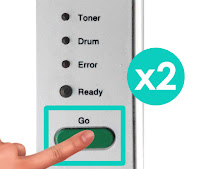
Step 4. We press the "GO" button 2 times and wait a few seconds.

Reset Brother - Tips printers
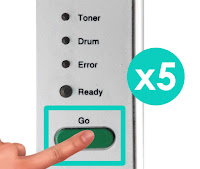
Step 5. We press the "GO" 5 times. Button Toner light must be turned off and turned on the light paper.


Reset Brother - Tips printers
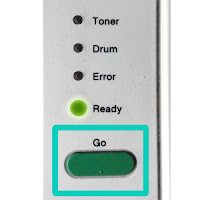
Step 6. We close the toner cover and light "ready" should stay on.


Reset Brother - Tips printers

If after the reset you get not print, turn the printer off and on again.

In some cases it can indicate a similar message as "change toner" or "toner low" even if you have not printed enough leaves to exhaust it, in that case we recommend that you try to reset the toner manually.


Look at the original post in Consejos Impresoras

Wednesday, 1 June 2016

Reset Toner Brother MFC series


Printer Blog >> Help >> Reset Toner Brother MFC series

Brother MFC printer toner reset


Problem: The printer does not recognize the toner


Brother MFC
Brother MFCA can sometimes happen that when installing the printer toner will launch messages such as "Replace Toner" or "Out of toner" or simply "toner error". Do not worry, it is relatively common to occur in Brother printers when you install a toner that is not the manufacturer's brand.

In this case, the solution is quite simple. First we recommend you try to make toner restart before proceeding with the steps listed below you.


If the steps you still has problems, try to do the following after performing:


  1. Open the front cover of the printer (where the toner is introduced)
  2. On the printer display you will get a message like "Front cover open" or "Cover Open".
  3. Press the "CLEAR" or "DELETE" button.
  4. A beep sounds in the printer and the display appears the message "Replace Drum?"
  5. Click on the following combination * 00 numeric keypad and press the "ENTER" button.
  6. Close the front cover, the printer will restart.
  7. If after you reset the printer toner still has problems, try uninstalling the printer and reinstall it again. Optimally, in these cases, is that again install the software CD that comes with the printer, if not, you can download the driver from the official website of Brother.


Why does this happen?


As discussed above, it is relatively common to happen with Brother laser printers. Some printer models have an internal page counter printers that are renewed as the consumable is changed. Sometimes this is not done automatically reboot and the printer does not recognize the toner as brand new or you fail. That is why, so it is necessary to inform the printer that you have installed a new consumable and you have to start counting from zero.

These steps pose no risk to the printer, so if we recommend is that you read completely before starting to perform them.


What if it does not recognize the toner?


If you're still having problems despite this, it is best that you contact the store that supplied the toner because you may simply this is defective and replace it with a new one you can print normally.