Showing posts with label printer ink multifunction. Show all posts

Tuesday, 10 May 2016

How to change printer cartridges dela DCP-J132W Brother

Printer Blog >> Help >> How to change the printer cartridges of Brother DCP-J132W


Printer Brother DCP-J132W


Change Printer cartridges Brother DCP-J132W


Want to know how to change cartridges Brother DCP-J153W? Us how:
The Brother DCP-J132W printer has four individual ink cartridges. Here we can locate on the right front of the printer:
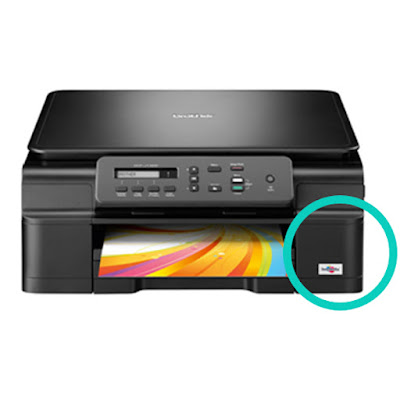

Brother DCP-J132W

To change we can follow the steps come in the User Guide of the printer or the following:


  • Open the cartridge cover.
  • Each cartridge has a flange at the top. Simply press the lever to release the lock and the cartridge will.Cartridges Brother DCP-J132W
  • Take the new cartridge and remove all the protections you may have. (Without shaking the cartridge).
  • Insert the cartridge in its corresponding color and gently press the cartridge into until you see the lock lever is lifted.
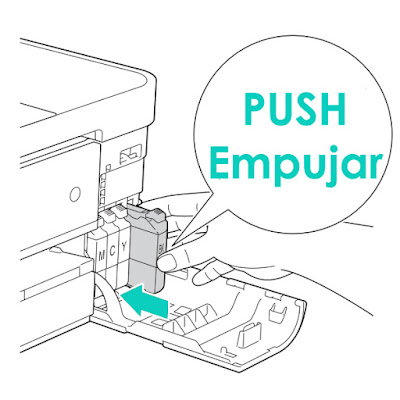
Cartridges Brother DCP-J132W
  • Close the cartridge cover ... and READY!


You have changed your cartridges Brother printer!


To see de original content click to Como cambiar los cartuchos de la impresora Brother DCP-J132W

Change Printer cartridges Canon MG-2555

Home >> Help >> Change Printer cartridges Canon MG-2555

Canon printer MG-2555


Change Printer cartridges Canon MG-2555


All printers usually come with a manual or user guide where are the instructions to change printer cartridges. In the series of Canon MG-2500 you have left at the end of the post the link of all the manuals available so you can download without problems.

Canon MG-2555

You have to change the cartridges when the alarm light blinks orange (error) and the ink lamps at a time.The steps then we will serve you to replace virtually all of Canon's FINE cartridges (two cartridges: one black and one tricolor) type.

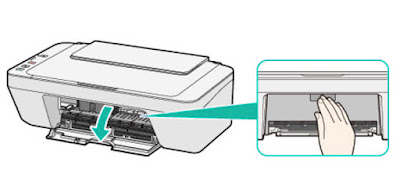
We check that the printer is turned on and connected to the computer.If the paper tray is extended below the close.We open the front cover. To do this we need to pull us and down, as shown in the image below. We'll see how the "car" of the cartridges moves to the center so that we can easily change them.

Cambiar cartuchos impresora Canon MG-2555

  • Remove the cartridge "car." To do this, simply press the end of the cartridge down until it clicks. Do not force or squeeze too, so if you see that it costs a lot of work, maybe you're not doing well.
  • Get the whole cartridge and take the new cartridge. Remember to remove all seals before installing it, because if not, the cartridge will give you problems and will not work perfectly. The seal is usually in the head cartridge.
  • Insert the new cartridge. Make the same movement as when you extracted the other, but in reverse. To lock the cartridge has to make a click.


Cambiar cartuchos impresora Canon MG-2555

Close the front cover. The printer must be ready to print. If the light "alarm" lights orange after installing it ... .you have not done something well: -S. Do not worry and try to do it again.


Check out the original content at Cambiar cartuchos impresora Canon MG-2555

How to change cartridges Canon MX-410 printer

Home >> Help >> How to change cartridges Canon MX-410 printer

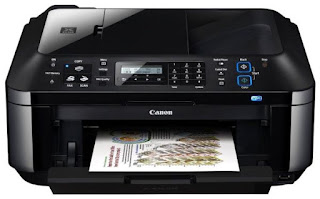
Canon printer MX-410

Change printer cartridges Canon MX-410


Printers usually come with a user guide where you can see the steps to change ink cartridges if you do not have or have lost, you can follow the instructions listed below you.


Canon MX-410


*Change your printer cartridge when prompted only the printer itself. No need to change the two cartridges at a time, only to be depleted.

  • With the printer connected to the computer and the power, check that is on.
  • Open the paper output tray.
  • Lift the top cover (where the scanner is) to access the cartridges.
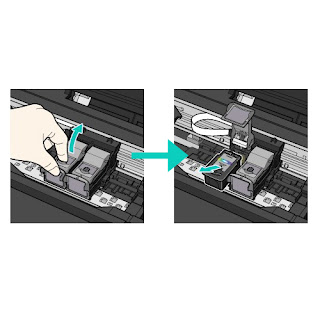
  • Extracts the cartridges as shown in the image. First you have to lift the cover that holds the cartridge and then pull it out.
  • Change printer cartridges Canon MX
  • Take the new cartridge and remove all bearing seals.
  • Install it in the corresponding hole and as such was the other cartridge and close the cartridge cover until it clicks. * It is important that the cover is properly closed and straight to fit.
  • To close the scanner cover you have to lift slightly this and close smoothly.


If you want more information about Canon MX-410 printer can take a look at our review.


These steps to change cartridges Canon MX-410, also serves the following models of Canon printers:

Canon MX-395, Canon MX-475, MX-525 Canon, Canon MX-535, MX-725 Canon Canon Canon MX-895 and MX-925.


Wednesday, 27 April 2016

How to change the Canon MX410 printer cartridges

Home >> Help >> How to change the Canon MX410 printer cartridges

Canon printer MX-410

Change printer cartridges Canon MX-410

Printers usually come with a user guide where you can see the steps to change ink cartridges if you do not have or have lost, you can follow the instructions listed below you.

Canon MX-410
* Change your printer cartridge when prompted only the printer itself. No need to change the two cartridges at a time, only to be depleted.

  • With the printer connected to the computer and the power, check that is on.
  • Open the paper output tray.
  • Lift the top cover (where the scanner is) to access the cartridges.
  • Extracts the cartridges as shown in the image. First you have to lift the cover that holds the cartridge and then pull it out.
Change printer cartridges Canon MX


  • Take the new cartridge and remove all bearing seals.
  • Install it in the corresponding hole and as such was the other cartridge and close the cartridge cover until it clicks. * It is important that the cover is properly closed and straight to fit.
  • To close the scanner cover you have to lift slightly this and close smoothly.

If you want more information about Canon MX-410 printer can take a look at our review.

These steps to change cartridges Canon MX-410, also serves the following models of Canon printers:
Canon MX-395, Canon MX-475, MX-525 Canon, Canon MX-535, MX-725 Canon Canon Canon MX-895 and MX-925.


Look at the original post in Consejos Impresoras